The currency converter example
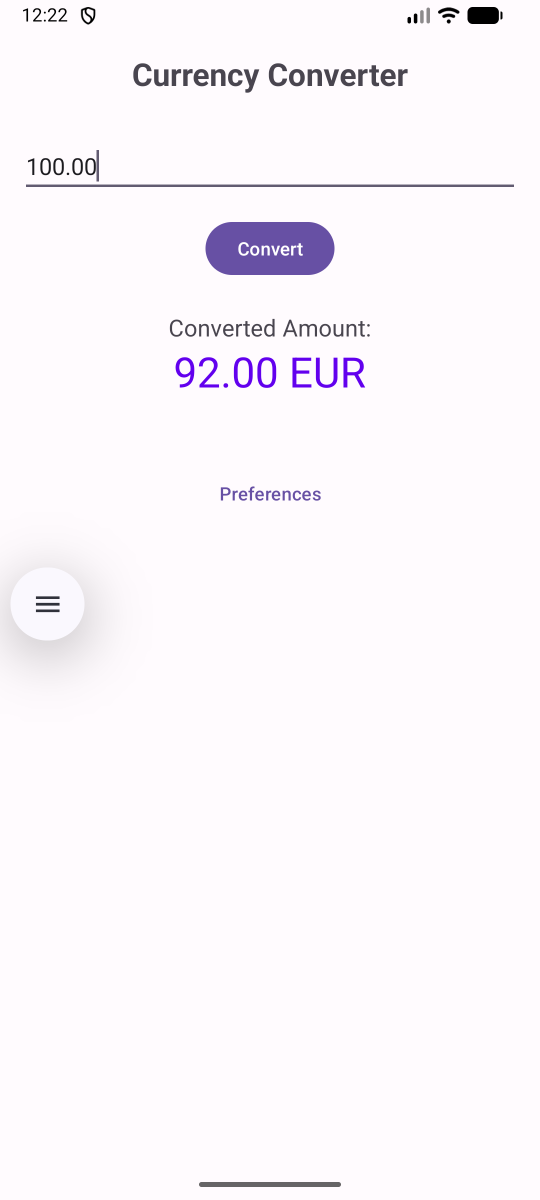
Our next Android example app is a simple calculator that converts amounts from US dollars to a variety of other currencies.
The app has two activities. The main activity displays the calculator:
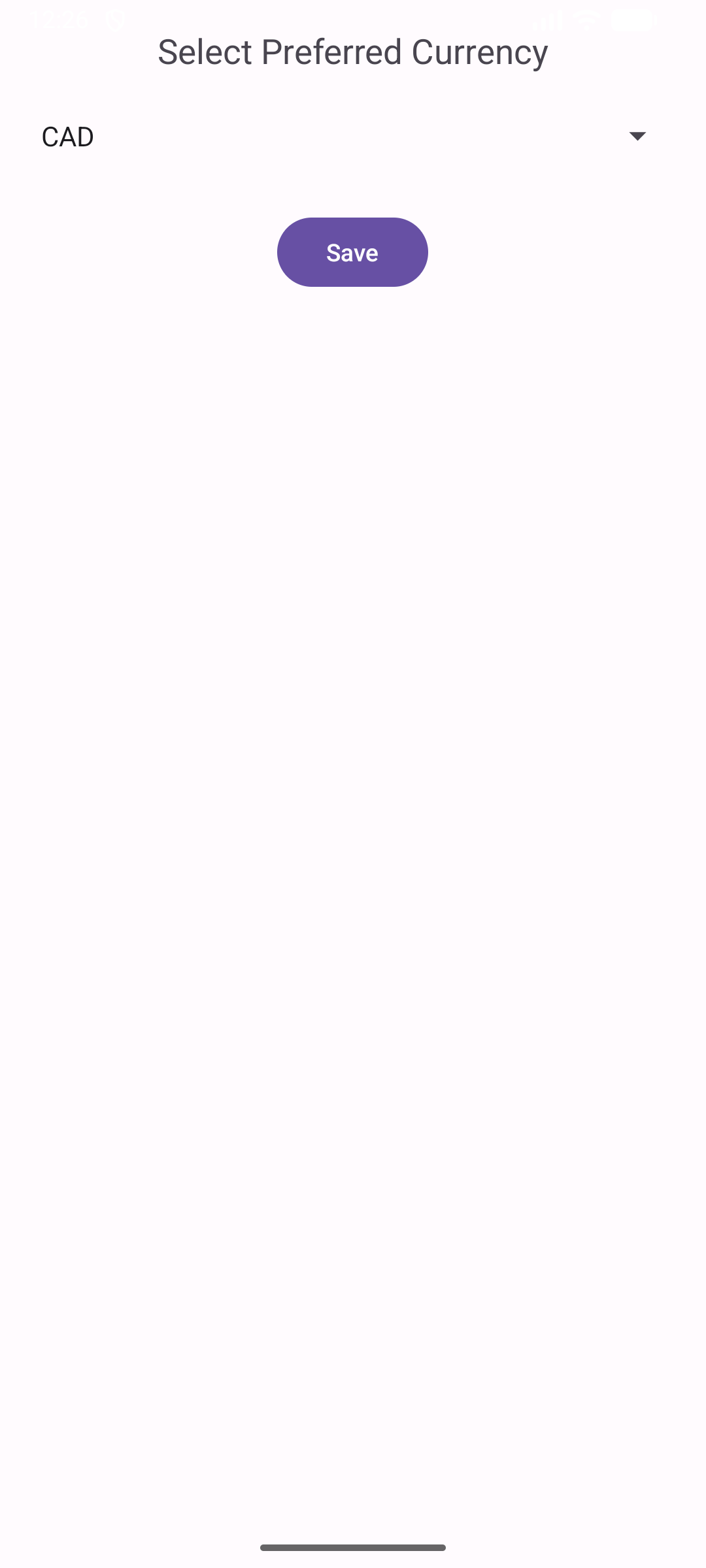
The second activity, which we can access via the Preferences link, allows the user to switch to a different currency.
Two common problems with data
All apps work with data. The instant you integrate data into an app you are going to have two problems:
- Sharing that data across multiple activities.
- Making the data persist over time, so that if the user closes the app and then reopens it later the data is still there.
The main data that this program works with a list of currencies along with their exchange rates, and the currently selected currency. Obviously, when the user uses the calculator they will want to do the calculation with their selected currency. The preferences activity will display a list of available currencies, and we will also want that list to default to the currently selected currency. We will also want the user's choice of currency to persist across runs of the app: if they close the app and reopen, the selected currency should be set to their previous choice.
To solve these two problems in this app we will use two very common mechanisms. To make the selected currency persist over time we will use a Repository class. To make key data available across all of our activities we will use a ViewModel class.
The Repository class
Here is the code for the application's repository class:
object CurrencyRepository {
    private const val PREFS_NAME = "currency_prefs"
    private const val KEY_CURRENCY = "selected_currency"

    private var prefs: SharedPreferences? = null

    private val _selectedCurrency = MutableLiveData("EUR")
    val selectedCurrency: LiveData<String> = _selectedCurrency

    val conversionRates = mapOf(
        "EUR" to 0.92,
        "GBP" to 0.79,
        "JPY" to 150.45,
        "CAD" to 1.35,
        "AUD" to 1.53
    )

    /**
     * Initialize the repository with a context to access SharedPreferences.
     * Called from the Application class.
     */
    fun init(context: Context) {
        if (prefs == null) {
            prefs = context.applicationContext.getSharedPreferences(PREFS_NAME, Context.MODE_PRIVATE)
            val savedCurrency = prefs?.getString(KEY_CURRENCY, "EUR") ?: "EUR"
            _selectedCurrency.value = savedCurrency
        }
    }

    fun updateCurrency(code: String) {
        if (conversionRates.containsKey(code)) {
            _selectedCurrency.value = code
            // Persist the change
            prefs?.edit()?.putString(KEY_CURRENCY, code)?.apply()
        }
    }

    fun getRate(code: String): Double {
        return conversionRates[code] ?: 1.0
    }
}
The first thing to note here is how this class is set up. Instead of declaring this class with the usual class keyword, we have instead used the object keyword. object creates a singleton class, that is a class that has only a single global instance. Further down in these notes when we get to code that uses this class you will be able to see how we access that instance object.
To implement the persistence mechanism, the class has a member variable prefs of type SharedPreferences. The SharedPreferences class implements a simple persistence mechanism that allows us to store key, value pairs. The keys in this scheme are strings. We work with the associated values by calling the appropriate get and set method on the prefs object.
Instead of a constructor, this class uses an init() function which gets invoked automatically when we create this object. That function initializes the prefs object by pulling it from the application context, reads the current currency preference, and then stores the current currency value in the object.
The key preference we want to store here is the selected currency. For reasons that will become clear in a minute, we will want to wrap this value in a LiveData object and then expose that value through a public property. Note that the private property is mutable, while the public property is not.
Finally, we provide two methods. The updateCurrency() method allows us to set a new value for the selected currency, and it also saves the new value in the prefs member. The getRate() method looks up the conversion rate for a particular currency.
The ViewModel class
Next, to make the repository available where it is needed, we make use of a second class which is derived from the ViewModel class:
class CurrencyViewModel : ViewModel() {
    private val repository = CurrencyRepository

    val selectedCurrency: LiveData<String> = repository.selectedCurrency

    private val _convertedAmount = MutableLiveData<Double>()
    val convertedAmount: LiveData<Double> = _convertedAmount

    fun convert(dollars: Double) {
        val currencyCode = selectedCurrency.value ?: "EUR"
        val rate = repository.getRate(currencyCode)
        _convertedAmount.value = dollars * rate
    }

    fun setCurrency(code: String) {
        repository.updateCurrency(code)
    }

    fun getAvailableCurrencies(): List<String> {
        return repository.conversionRates.keys.toList()
    }
}
The ViewModel class exposes two public properties, the selected currency, and a converted amount for the calculator to use. Both of these exposed properties are LiveData objects - we will see shortly why we use that method to expose the values.
The ViewModel contains a private reference to the CurrencyRepository object. Since that class we declared with object instead of class we use a slightly different syntax to get a reference to that single object instance.
Finally, the ViewModel class provide three convenience functions for doing currency conversions, setting a new favorite currency, and getting the list of available currencies.
The first activity
class MainActivity : AppCompatActivity() {
    private val viewModel: CurrencyViewModel by viewModels()

    override fun onCreate(savedInstanceState: Bundle?) {
        super.onCreate(savedInstanceState)
        enableEdgeToEdge()
        setContentView(R.layout.activity_main)

        val amountInput = findViewById<EditText>(R.id.amountInput)
        val convertButton = findViewById<Button>(R.id.convertButton)
        val resultText = findViewById<TextView>(R.id.resultText)
        val preferencesButton = findViewById<Button>(R.id.preferencesButton)

        ViewCompat.setOnApplyWindowInsetsListener(findViewById(R.id.main)) { v, insets ->
            val systemBars = insets.getInsets(WindowInsetsCompat.Type.systemBars())
            v.setPadding(systemBars.left, systemBars.top, systemBars.right, systemBars.bottom)
            insets
        }

        viewModel.convertedAmount.observe(this) { amount ->
            resultText.text = String.format("%.2f %s", amount, viewModel.selectedCurrency.value)
        }

        viewModel.selectedCurrency.observe(this) { currency ->
            // Update UI if needed when currency changes
        }

        convertButton.setOnClickListener {
            val amountStr = amountInput.text.toString()
            if (amountStr.isNotEmpty()) {
                val amount = amountStr.toDouble()
                viewModel.convert(amount)
            }
        }

        preferencesButton.setOnClickListener {
            val intent = Intent(this, PreferencesActivity::class.java)
            startActivity(intent)
        }
    }
}
There are two important things going on in this code. The first is that we will need to get access to the ViewModel. We do this by setting up a member varlable that stores a reference to the ViewModel. To initialize that member variable we use the by keyword, which allows us to provide code that will run during the object initialization process. That code invokes the viewModels() method, which is to designed to locate the application's view model.
The second thing going on here is a quite a bit of initialization code inside the usual onCreate() method.
Two bits of code here work with the LiveData objects exposed by the ViewModel. LiveData objects are observable, which means that we can attach lambda expressions to them that will fire when the LiveData objects change their value. We use the observe() method to attach those lambda expressions to the LiveData objects. Those lambda expressions will receive the new value of the object as their parameter.
Another technique that this code demonstrates is an alternative method of attaching an event handler to a button. This code uses the setOnClickListener() method of the button class to attach the click handler code to the buttons.
The second activity
The second activity is a preferences view that allows the user to select the currency they want to work with.
class PreferencesActivity : AppCompatActivity() {
    private val viewModel: CurrencyViewModel by viewModels()

    override fun onCreate(savedInstanceState: Bundle?) {
        super.onCreate(savedInstanceState)
        setContentView(R.layout.activity_preferences)

        val spinner = findViewById<Spinner>(R.id.currencySpinner)
        val saveButton = findViewById<Button>(R.id.saveButton)

        val currencies = viewModel.getAvailableCurrencies()
        val adapter = ArrayAdapter(this, android.R.layout.simple_spinner_item, currencies)
        adapter.setDropDownViewResource(android.R.layout.simple_spinner_dropdown_item)
        spinner.adapter = adapter

        // Set current selection
        val currentCurrency = viewModel.selectedCurrency.value
        val selectionIndex = currencies.indexOf(currentCurrency)
        if (selectionIndex != -1) {
            spinner.setSelection(selectionIndex)
        }

        saveButton.setOnClickListener {
            val selected = spinner.selectedItem.toString()
            viewModel.setCurrency(selected)
            finish() // Return to MainActivity
        }
    }
}
The list of available currencies is displayed inside a Spinner, which implements a simple drop-down menu of options. To display a list of options in a spinner we supply it with an Adapter which wraps the list of options. To make sure that the spinner defaults to the option that matches the current currency, we ask the viewModel for the currently selected currency, figure out where that appears in the list of all currencies, and then tell the spinner to display the element with that index.
Finally, when the user clicks the Save button we save the user's choice of currency in the ViewModel, and then call the finish() method to kill this activity and revert back to the main activity.