The Quiz example
Today's example is an app that communicates with a back end server. The app implements a simple quiz using three activities.
The first activity displays a list of students in an imaginary class.
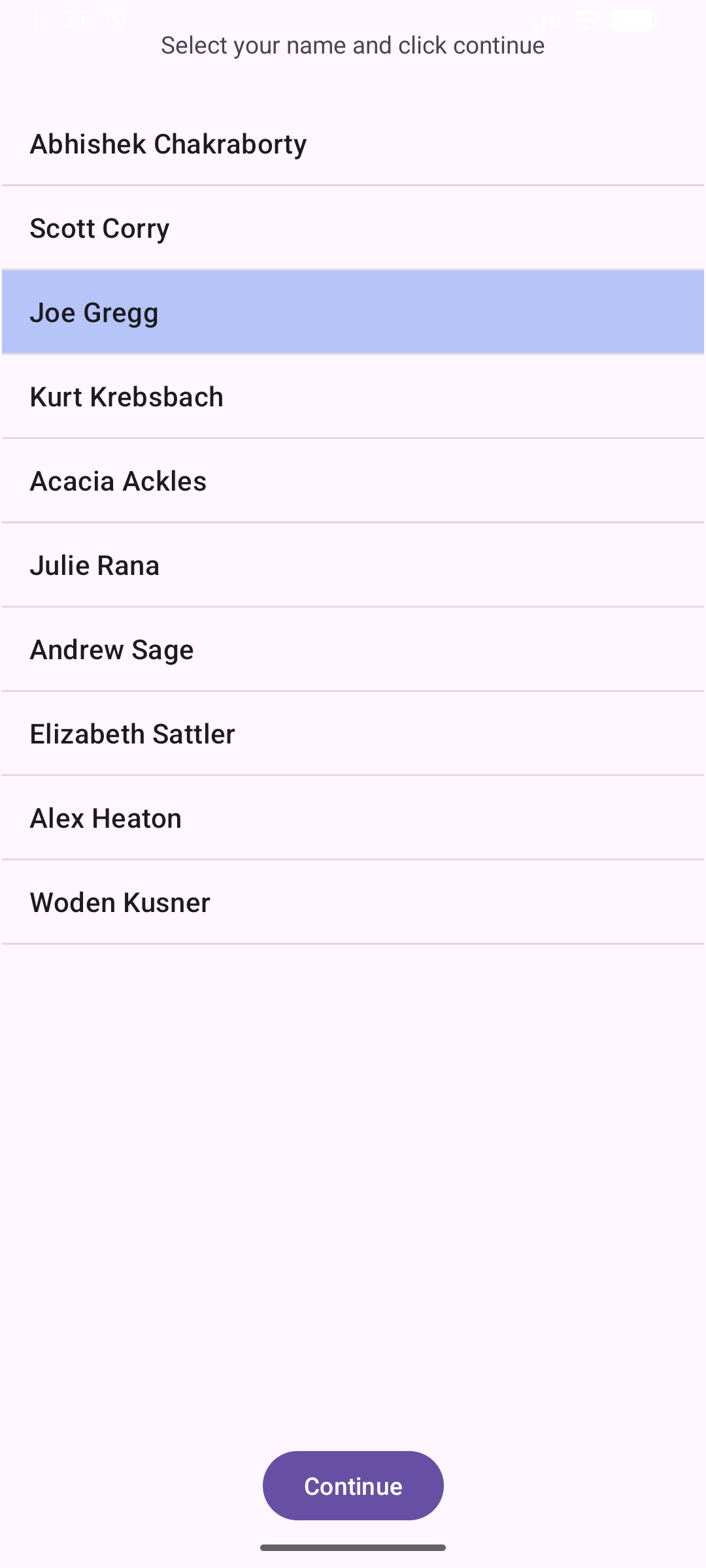
The user selects their name from the displayed list of names and clicks Continue to go on to the second activity. The second activity then displays a list of available quizzes.
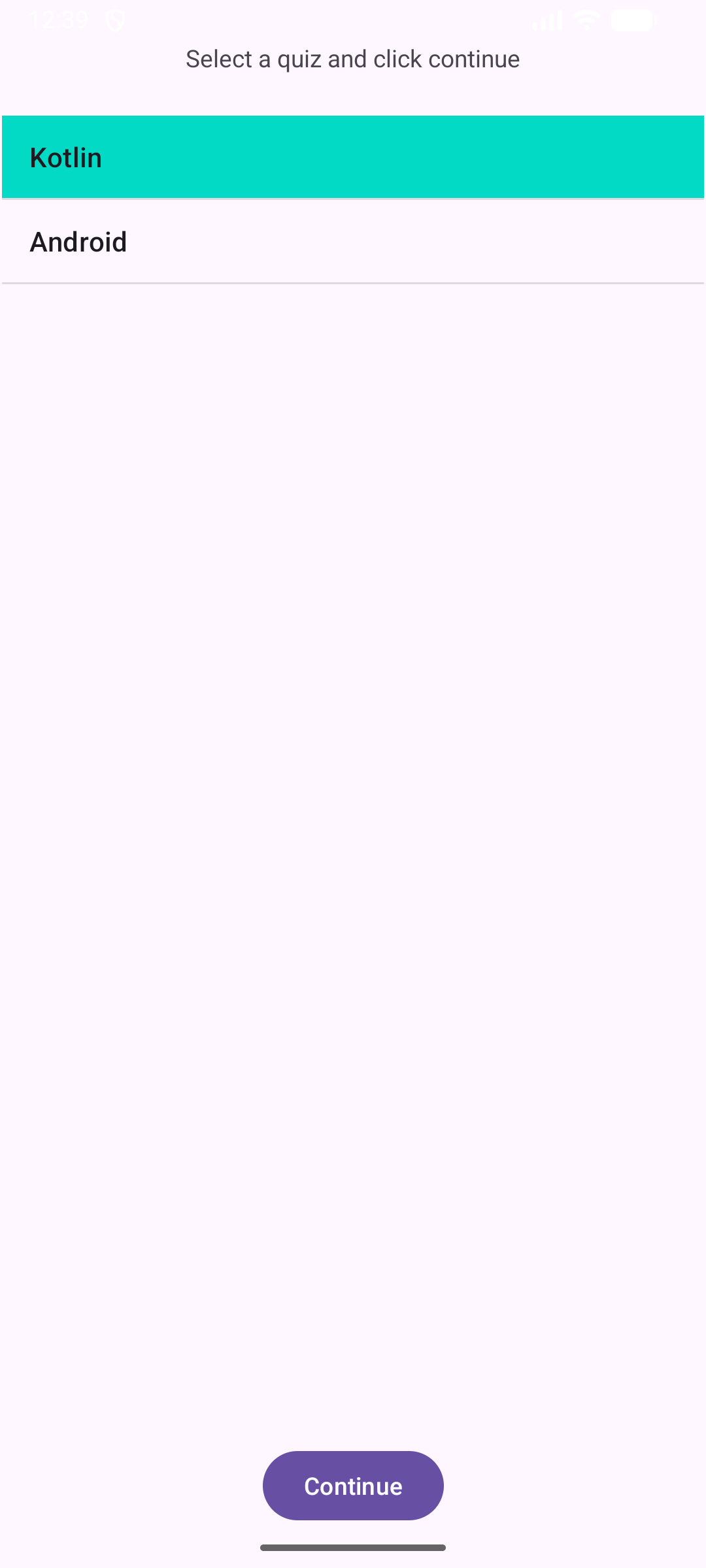
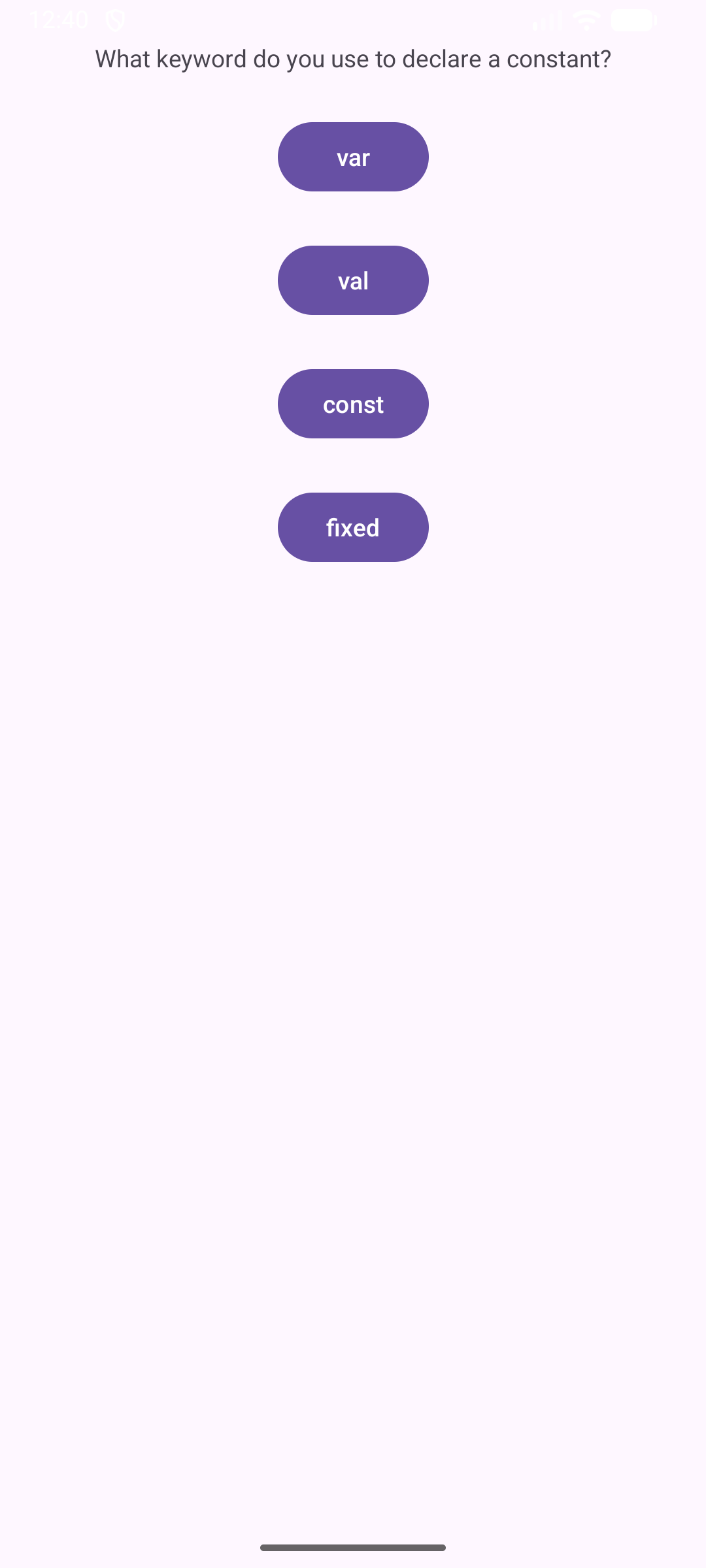
The user selects a quiz and clicks the button to go on to the third activity, which displays the quiz questions as a series of multiple choice questions.
About the back end server
This application communicates with a back end server that I have set up at the base URL
https://cmsc106.net/quiz/
The server responds to four requests, three GET requests and a POST request.
- A get request sent to /students returns the list of students that show up in the first activity.
- A get request sent to /quizzes fetches the list of quizzes
- A get request sent to /questions?quiz=<quiz number> will fetch the list of all of the questions for a particular quiz.
- A post request sent to /answers will allow us to post the users answer to a particular question.
The back end server will use the JSON format to encode objects that we send back and forth to the server. The first step in writing an Android application that communicates with the server is to set up a set of data classes whose structure mirrors that of the objects the server works with.
I have created four data classes for this purpose: Student, Quiz, Question, and Answer.
data class Student(
    var id: Int = 0,
    var name: String? = null
)
data class Quiz(
    var id: Int = 0,
    var title: String? = null
)
data class Question(
    var id: Int = 0,
    var subject: String? = null,
    var question: String? = null,
    var choices: String? = null,
    var quiz: Int = 0
)
data class Answer(
    var student: Int = 0,
    var question: Int = 0,
    var response: String? = null
)
These classes are defined in four separate Kotlin files in the project.
Getting ready to use the network
Android uses a system of permissions to control the actions that an app can carry out. In some cases the app will need to ask the user for a special permission, such as getting access to the user's photo library. In other cases we simple need to document somewhere that we are using a special permission.
All apps that access the internet will need to get permission to do so. The way that we ask for that permission is to embed the element
<uses-permission android:name="android.permission.INTERNET" />
in the AndroidManifest.xml file found in the manifests folder.
Using Retrofit
To communicate with a server over the internet we will need to make use of a library. Network communication is not included in the Android SDK, so we need to import a third party library to do that work for us. This project uses the Retrofit library, which is one of the most popular libraries for doing network communication in Android.
To make use of this external library we have to add some extra entries in the dependencies section of our project's build.gradle.kts file:
implementation(libs.retrofit)
implementation(libs.retrofit.gson)
implementation(libs.okhttp)
implementation(libs.okhttp.logging)
implementation(libs.gson)
To work with Retrofit in a project we need to prepare two special files in our project. The first file, RetrofitClient.kt, introduces a global object that acts as our entry point to the Retrofit system.
object RetrofitClient {
    private const val BASE_URL = "https://cmsc106.net/quiz/"

    private val logging = HttpLoggingInterceptor().apply {
        level = HttpLoggingInterceptor.Level.BODY
    }

    private val httpClient = OkHttpClient.Builder()
        .addInterceptor(logging)
        .build()

    val instance: QuizApi by lazy {
        val retrofit = Retrofit.Builder()
            .baseUrl(BASE_URL)
            .addConverterFactory(GsonConverterFactory.create())
            .client(httpClient)
            .build()

        retrofit.create(QuizApi::class.java)
    }
}
The second file, QuizApi.kt, defines an interface we will use to communicate with the server:
interface QuizApi {
    @GET("questions")
    fun getQuestions(@Query("quiz") quizId: Int): Call<Array<Question>>

    @POST("answers")
    fun postAnswer(@Body answer: Answer): Call<Void>

    @GET("quizzes")
    fun getQuizzes(): Call<Array<Quiz>>

    @GET("students")
    fun getStudents(): Call<Array<Student>>
}
This code uses special annotations provided by Retrofit to label methods with the HTTP method they will use to communicate with the server and the URL fragment these methods will need. In the case of the POST method, the @Body annotation also specifies that the Answer object provided should be placed in the body of the request to the server.
The first activity
Here now is the code for the first activity, which starts by fetching a list of students from the server.
class StudentPickerActivity : AppCompatActivity() {
    private var students: Array<Student>? = null
    private var selected_student: Int = -1

    override fun onCreate(savedInstanceState: Bundle?) {
        super.onCreate(savedInstanceState)
        setContentView(R.layout.activity_student_picker)
        selected_student = -1
        requestStudents()
    }

    private fun requestStudents() {
        // Code shown below
    }

    private fun showStudents(studentsArray: Array<Student>) {
        // Code shown below
    }

    fun nextActivity(view: View) {
        if (selected_student >= 0) {
            val id = students?.get(selected_student)?.id ?: return
            val intent = Intent(this, QuizPickerActivity::class.java)
            intent.putExtra(STUDENT_ID, id)
            startActivity(intent)
        }
    }

    companion object {
        const val STUDENT_ID = "edu.lawrence.AndroidQuiz.STUDENT_ID"
        const val QUIZ_ID = "edu.lawrence.AndroidQuiz.QUIZ_ID"
    }
}
The two most important functions here are requestStudents() and showStudents(). The requestStudents() function gets called from the onCreate() function and initiates the process of asking the server to send us a list of students.
private fun requestStudents() {
    RetrofitClient.instance.getStudents().enqueue(object : Callback<Array<Student>> {
        override fun onResponse(call: Call<Array<Student>>, response: Response<Array<Student>>) {
            if (response.isSuccessful) {
                response.body()?.let { showStudents(it) }
            } else {
                val diagnosticMsg = "Server Error (Status Code: ${response.code()})."
                Log.e("StudentPickerActivity", diagnosticMsg)
                Toast.makeText(baseContext, diagnosticMsg, Toast.LENGTH_LONG).show()
            }
        }

        override fun onFailure(call: Call<Array<Student>>, t: Throwable) {
            val diagnosticMsg = "Network Error: ${t.message}"
            Log.e("StudentPickerActivity", diagnosticMsg)
            Toast.makeText(baseContext, diagnosticMsg, Toast.LENGTH_LONG).show()
        }
    })
}
The RetroFitClient class we defined earlier contains an instance property that implements the QuizApi interface. This gives us access to the methods that send requests to the server. In this case we want to call the getStudents() method in the QuizApi to send the GET request to fetch the list of students. Rather than send the request right away and wait for a response to come back, we enqueue the request along with a Callback object that contains methods that Retrofit can invoke when the response comes back or when there is a failure in the request.
In the case of a successful request we grab the body of the response and pass it to the showStudents() method:
private fun showStudents(studentsArray: Array<Student>) {
    students = studentsArray
    var studentStrs: Array<String>? = null

    val studentList = findViewById<ListView>(R.id.student_list)

    students?.let {
        studentStrs = Array(it.size) { n -> it[n].name ?: "" }
    }

    val adapter = ArrayAdapter(this, android.R.layout.simple_list_item_1, studentStrs ?: emptyArray())
    studentList.adapter = adapter

    studentList.setOnItemClickListener { _, _, i, _ ->
        // remember the selection
        selected_student = i
    }
}
Retrofit will have already converted the JSON code from the server into an Array of Student objects for us. All we have to do is to put those Students into another array that we can pass to the ListView.
A ListView works in much the same way as the Spinner component we met in the last example. To put a list of Strings into a ListView we pass the Array of Strings to an ArrayAdapter and tell the ListView to use that adapter.
One final bit of setup that is needed here is to add a click listener to the ListView so we can keep a record of what item was selected.
Posting answers back to the server
One last bit of interesting code in this example appears in the class for the third activity, the QuestionActivity. This is the method that gets called when the user clicks one of the four buttons to select an answer to a displayed question:
private fun answerQuestion(answer: String) {
    val qs = questions ?: return
    if (currentQuestion >= qs.size) return

    val ans = Answer()
    ans.question = qs[currentQuestion].id
    ans.student = studentID
    ans.response = answer

    RetrofitClient.instance.postAnswer(ans).enqueue(object : Callback<Void> {
        override fun onResponse(call: Call<Void>, response: Response<Void>) {
            if (response.isSuccessful) {
                currentQuestion++
                if (currentQuestion >= qs.size)
                    finish()
                else
                    showNextQuestion()
            } else {
                val diagnosticMsg = "Server Error (Status Code: ${response.code()})."
                Log.e("QuestionActivity", diagnosticMsg)
                Toast.makeText(baseContext, diagnosticMsg, Toast.LENGTH_LONG).show()
            }
        }

        override fun onFailure(call: Call<Void>, t: Throwable) {
            val diagnosticMsg = "Network Error: ${t.message}"
            Log.e("QuestionActivity", diagnosticMsg)
            Toast.makeText(baseContext, diagnosticMsg, Toast.LENGTH_LONG).show()
        }
    })
}
The activity has a member variable that stores a list of the questions in the quiz, along with another member variable that tracks which question is currently being displayed. The answer parameter here will indicate which option the user selected by passing the value "a" for the first button, "b" for the second, and so on. The function will use all of that information to construct an Answer object to post back to the server. Once we have that object we can initiate the Retrofit post request.
As before, the Callback for this request has two options, one for a successful request and one for a failed request. In case of success we increment the currentQuestion variable and exit the activity once we have gone past the end of the list of questions.
Alternative version - using Coroutines
You can be forgiven for thinking that some of the Retrofit code above is somewhat messy. Here is a typical example - the method to fetch the list of students in the first activity.
private fun requestStudents() {
    RetrofitClient.instance.getStudents().enqueue(object : Callback<Array<Student>> {
        override fun onResponse(call: Call<Array<Student>>, response: Response<Array<Student>>) {
            if (response.isSuccessful) {
                response.body()?.let { showStudents(it) }
            } else {
                val diagnosticMsg = "Server Error (Status Code: ${response.code()})."
                Log.e("StudentPickerActivity", diagnosticMsg)
                Toast.makeText(baseContext, diagnosticMsg, Toast.LENGTH_LONG).show()
            }
        }

        override fun onFailure(call: Call<Array<Student>>, t: Throwable) {
            val diagnosticMsg = "Network Error: ${t.message}"
            Log.e("StudentPickerActivity", diagnosticMsg)
            Toast.makeText(baseContext, diagnosticMsg, Toast.LENGTH_LONG).show()
        }
    })
}
This code is messy mostly because we used the somewhat clunky Callback object. Fortunately for us there is a somewhat cleaner alternative. This alternative replaces the callback based code with a Kotlin coroutine. A coroutine is a simple way to set up a thread in Kotlin. We put our networking code in that thread and run it in the background. This makes the code simpler overall.
Here is a new version of this requestStudents() function rewritten to use coroutines:
private fun requestStudents() {
    lifecycleScope.launch {
        try {
            val response = RetrofitClient.instance.getStudents()
            if (response.isSuccessful) {
                response.body()?.let { showStudents(it) }
            } else {
                val diagnosticMsg = "Server Error (Status Code: ${response.code()})."
                Log.e("StudentPickerActivity", diagnosticMsg)
                Toast.makeText(baseContext, diagnosticMsg, Toast.LENGTH_LONG).show()
            }
        } catch (t: Exception) {
            val diagnosticMsg = "Network Error: ${t.message}"
            Log.e("StudentPickerActivity", diagnosticMsg)
            Toast.makeText(baseContext, diagnosticMsg, Toast.LENGTH_LONG).show()
        }
    }
}
The only other change needed to get this to work is that we have to make a small change in the QuizApi interface:
interface QuizApi {
    @GET("questions")
    suspend fun getQuestions(@Query("quiz") quizId: Int): Response<Array<Question>>

    @POST("answers")
    suspend fun postAnswer(@Body answer: Answer): Response<Void>

    @GET("quizzes")
    suspend fun getQuizzes(): Response<Array<Quiz>>

    @GET("students")
    suspend fun getStudents(): Response<Array<Student>>
}
The functions here have to be declared suspend because they have to be allowed to suspend or pause the thread they are running in while we wait for a response from the server.
You can click the button below to download an updated version of the project that uses coroutines instead of the original, clunky callback code.