General instructions
For this assignment you will be constructing a simple app to manage a To Do list.
To Do application
In this assignment you will be writing an app to help the user keep track of tasks they need to do.
When the app starts up the first view in the app will allow the user to see all of the things on their to do list for today.
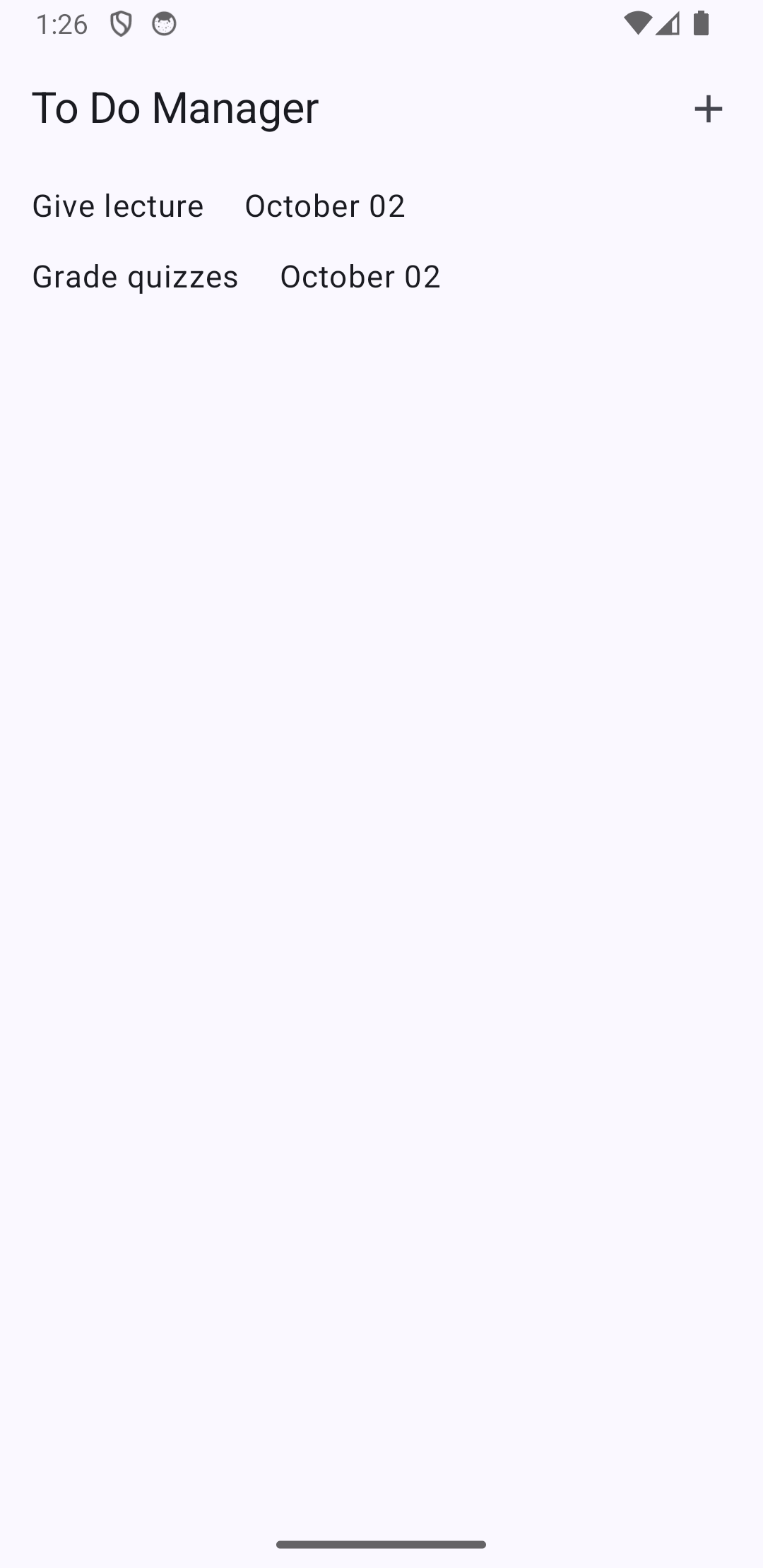
When the user has completed one of their events for the day, they can swipe left to remove that event from their to do list.
Clicking the "+" icon in the navigation bar takes the user to a second view where they can add new tasks to their calendar.
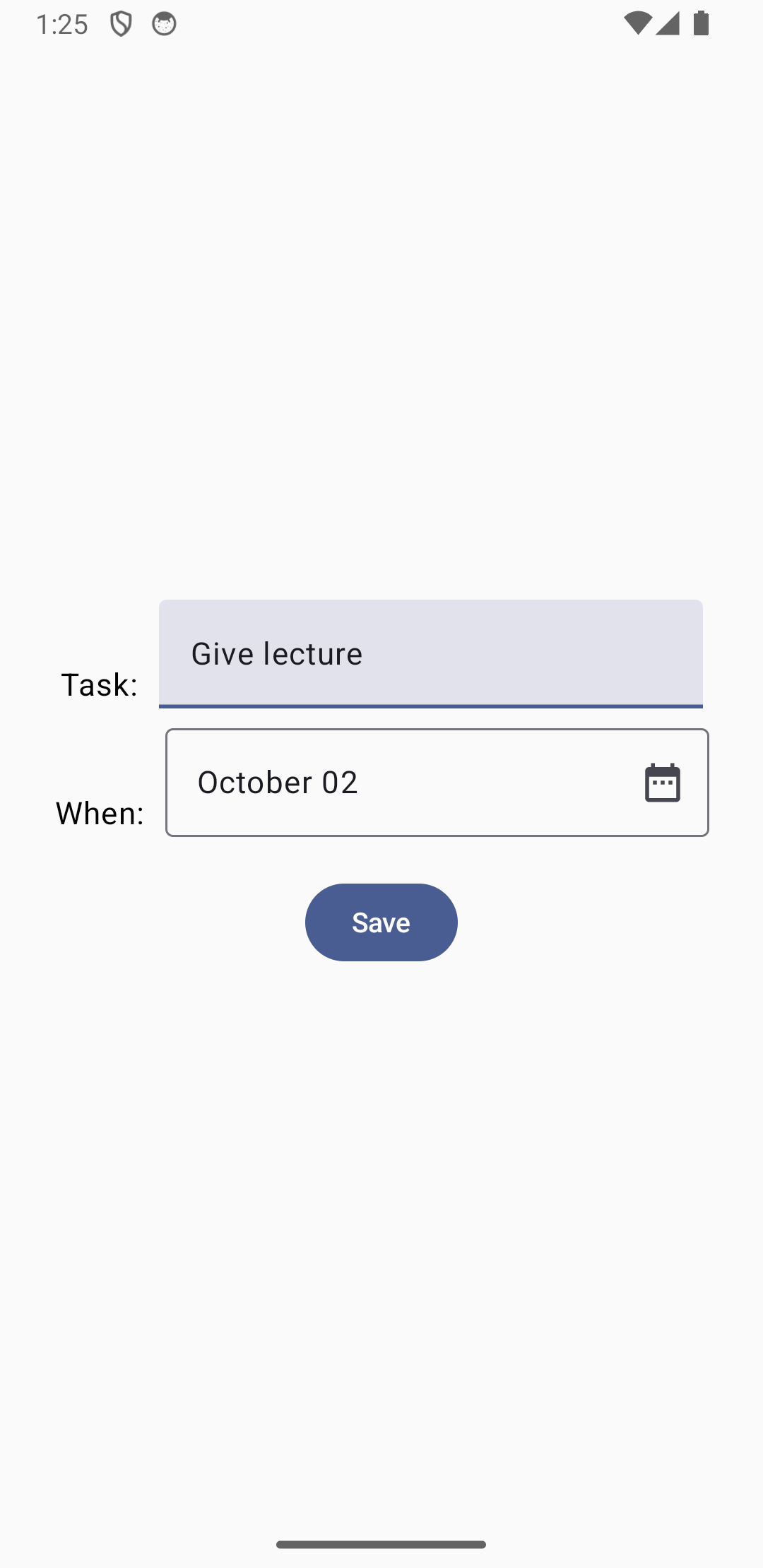
This second view includes a text field where the user can enter a title for the new task and a date picker where they can choose a date for the task. Clicking the Save button saves the new task. The user can use the second view to set up multiple tasks. Each time they click the Save button the app will create a new task.
Useful code
Here is code for the ToDo class you should be using for this assignment:
import java.util.UUID

data class ToDo(
    val id : UUID = UUID.randomUUID(),
    val todo: String,
    val date : String)
Similar to the first and second directory examples, you should store your application's list of ToDo objects in a JSON file.
On the screen for creating a new ToDo you will have to implement a date picker component. Unfortunately, implementing a date picker is somewhat complicated in Jetpack Compose. To start with, you should take a look at this web page, which gives some suggestions on how to implement a date picker.
I recommend using the modal style of date picker described on that page. In the function that you write for the screen for creating a new ToDo you should start by declaring a state variable like this:
val showModal = remember { mutableStateOf(false)}
Then the body of the component will take this form:
if(showModal.value == false) {
  // Display the components the user will use to enter
  // a todo string and a date

  // Make the component that displays the date for the
  // todo clickable and set showModal.value to true when
  // the user clicks it.
} else {
  // Display the DatePickerModal component
}
The DatePicker that Android provides returns a time in the form of an optional Long. Here is a convenience function to convert that time to a date string.
fun convertMillisToDate(time : Long): String {
    // Create a calendar instance in the default time zone
    val calendar = Calendar.getInstance().apply {
        timeInMillis = time
        // Adjust for the time zone offset to get the correct local date
        val zoneOffset = get(Calendar.ZONE_OFFSET)
        val dstOffset = get(Calendar.DST_OFFSET)
        add(Calendar.MILLISECOND, -(zoneOffset + dstOffset))
    }
    // Format the calendar time in the specified format
    val sdf = SimpleDateFormat("MMMM dd", Locale.US)
    return sdf.format(calendar.time)
}
Also, when showing the screen that the user will use to create a new ToDo, you should set the date to today's date by default. Here is some code to help you do that.
val timenow = Calendar.getInstance().time
val curDate = SimpleDateFormat("MMMM dd", Locale.US).format(timenow)
val time = remember { mutableStateOf(curDate) }