The temperature conversion example
Our next example is a simple calculator app that converts Fahrenheit temperatures to Celsius.
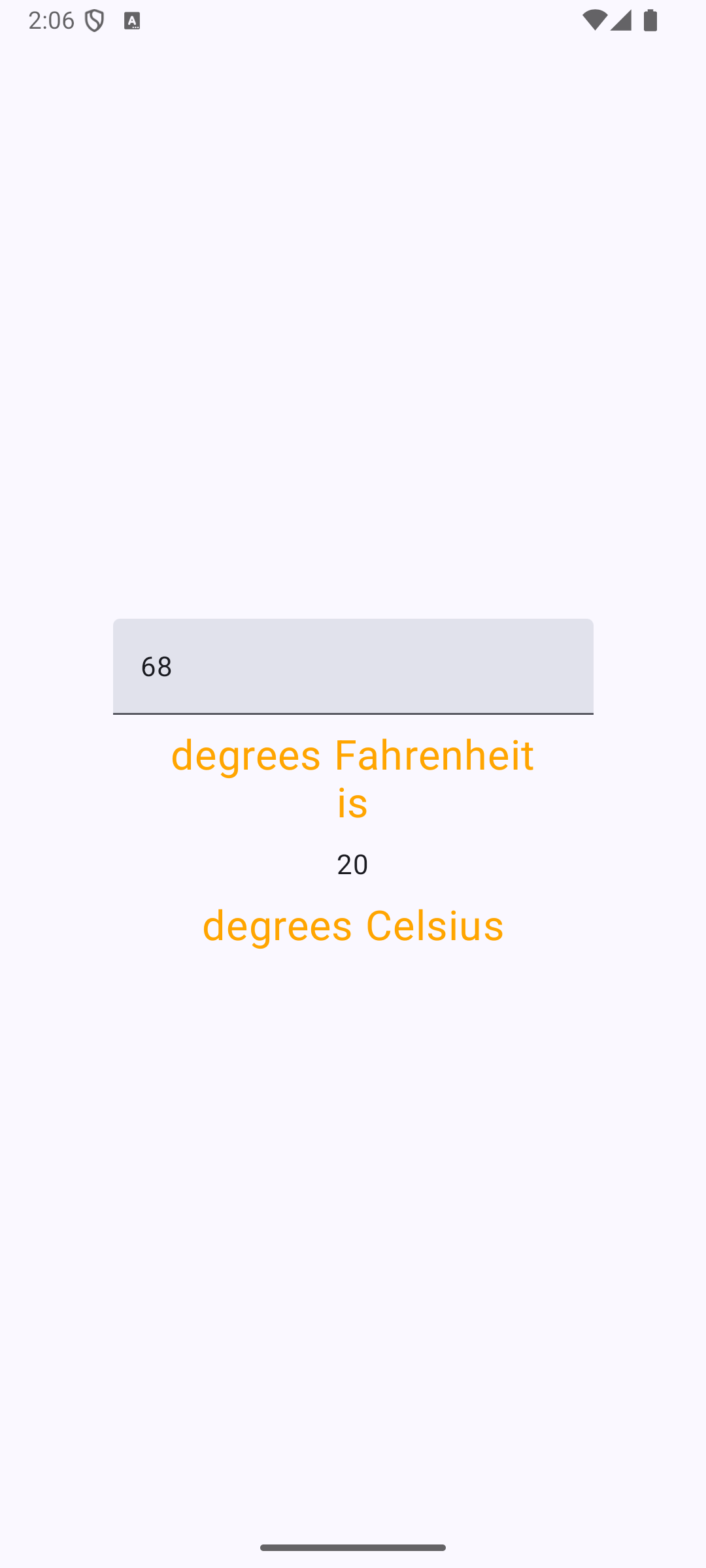
The main new feature we are going to introduce in this example is the use of TextFields for user input.
Here is the source code for our app:
package edu.lawrence.temperature

import android.os.Bundle
import androidx.activity.ComponentActivity
import androidx.activity.compose.setContent
import androidx.activity.enableEdgeToEdge
import androidx.compose.foundation.clickable
import androidx.compose.foundation.layout.Arrangement
import androidx.compose.foundation.layout.Column
import androidx.compose.foundation.layout.fillMaxSize
import androidx.compose.foundation.layout.padding
import androidx.compose.material3.Scaffold
import androidx.compose.material3.Text
import androidx.compose.material3.TextField
import androidx.compose.runtime.Composable
import androidx.compose.runtime.mutableStateOf
import androidx.compose.runtime.remember
import androidx.compose.ui.Alignment
import androidx.compose.ui.Modifier
import androidx.compose.ui.graphics.Color
import androidx.compose.ui.platform.LocalSoftwareKeyboardController
import androidx.compose.ui.tooling.preview.Preview
import androidx.compose.ui.unit.dp
import androidx.compose.ui.unit.sp
import edu.lawrence.temperature.ui.theme.TemperatureTheme

class MainActivity : ComponentActivity() {
    override fun onCreate(savedInstanceState: Bundle?) {
        super.onCreate(savedInstanceState)
        enableEdgeToEdge()
        setContent {
            TemperatureTheme {
                Scaffold(modifier = Modifier.fillMaxSize()) { innerPadding ->
                    TempCalculator(Modifier.padding(innerPadding))
                }
            }
        }
    }
}

@Composable
fun TempCalculator(modifier: Modifier = Modifier) {
    val fahrenheitTemp = remember { mutableStateOf("68")}
    val celsiusTemp = remember { mutableStateOf("20") }
    val orange = Color(0xFFFFA500)
    val keyboardController = LocalSoftwareKeyboardController.current
    Column(verticalArrangement = Arrangement.Center, horizontalAlignment = Alignment.CenterHorizontally, modifier = modifier.fillMaxSize()) {
        TextField(
            value = fahrenheitTemp.value,
            onValueChange = { newValue : String ->
                fahrenheitTemp.value = newValue
                val t = newValue.toDoubleOrNull()
                if(t == null)
                    celsiusTemp.value = "unknown"
                else {
                    val c = (t!! - 32.0)*5.0/9.0
                    celsiusTemp.value = "%.2f".format(c)
                }
            }
        )
        Column(horizontalAlignment = Alignment.CenterHorizontally,
            modifier = Modifier.clickable { keyboardController?.hide() }) {
            Text("degrees Fahrenheit", fontSize = 24.sp, color = orange,modifier=Modifier.padding(top=10.dp))
            Text("is", fontSize = 24.sp, color = orange,modifier=Modifier.padding(bottom=10.dp))
            Text(celsiusTemp.value)
            Text("degrees Celsius", fontSize = 24.sp, color = orange,modifier=Modifier.padding(top=10.dp))
        }
    }

}

@Preview(showBackground = true)
@Composable
fun GreetingPreview() {
    TemperatureTheme {
        TempCalculator()
    }
}
Working with text fields
To create a text field in Jetpack Compose we use the TextField() component. The constructor for this component takes two parameters: some text to display in the the text field, and a lambda expression that will get invoked whenever the user changes the content of the text field. The lambda expression takes one parameter, which is the new text for the field. In this example I use the lambda expression to convert the Fahrenheit temperature the user has typed into a Celsius temperature that we store in a second state variable. Since that second state variable displays its value in a text component further down in the view, changes to that second state variable will automatically get displayed in the view.
Additional event handler
When a user taps on an text field the app will respond by bringing up a software keyboard that the user can use to enter text into the field. One problem associated with these keyboards is that we will also need to provide the user with a way to make the keyboard go away again when they are done interacting with the text field. This app demonstrates one possible strategy for doing that.
If you look closely at the code above you will see that I have placed a Column component right after the text field. That column acts as a container for the rest of the user interface elements in the app, and it also gives us an opportunity to attach a special event handler that will respond to user taps anywhere in the column. We attach this special event handler through the use of a special type of Modifier we pass to the column. This modifier responds to taps anywhere in the column by invoking a lambda expression. The code in that lambda expression tells the app's keyboard controller to hide any keyboard that is currently being displayed.