The weather example
Our next example is an app that displays a weather forecast. The data for the forecast will be downloaded using the openweathermap.org API.
The first screen of the app displays a weather forecast for a location of the user's choice.
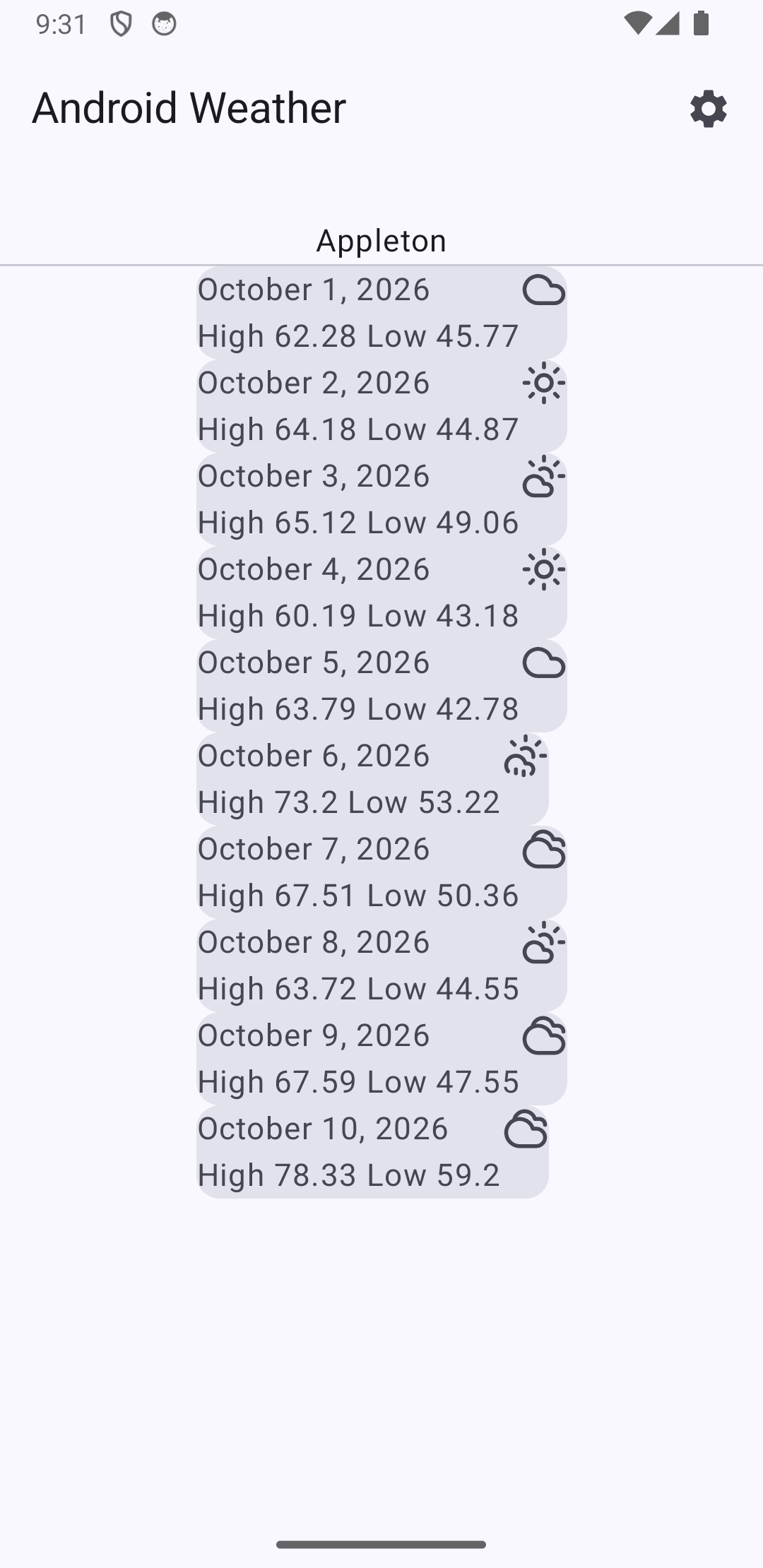
The second screen allows the user to enter the ZIP code for a location they would like to view.
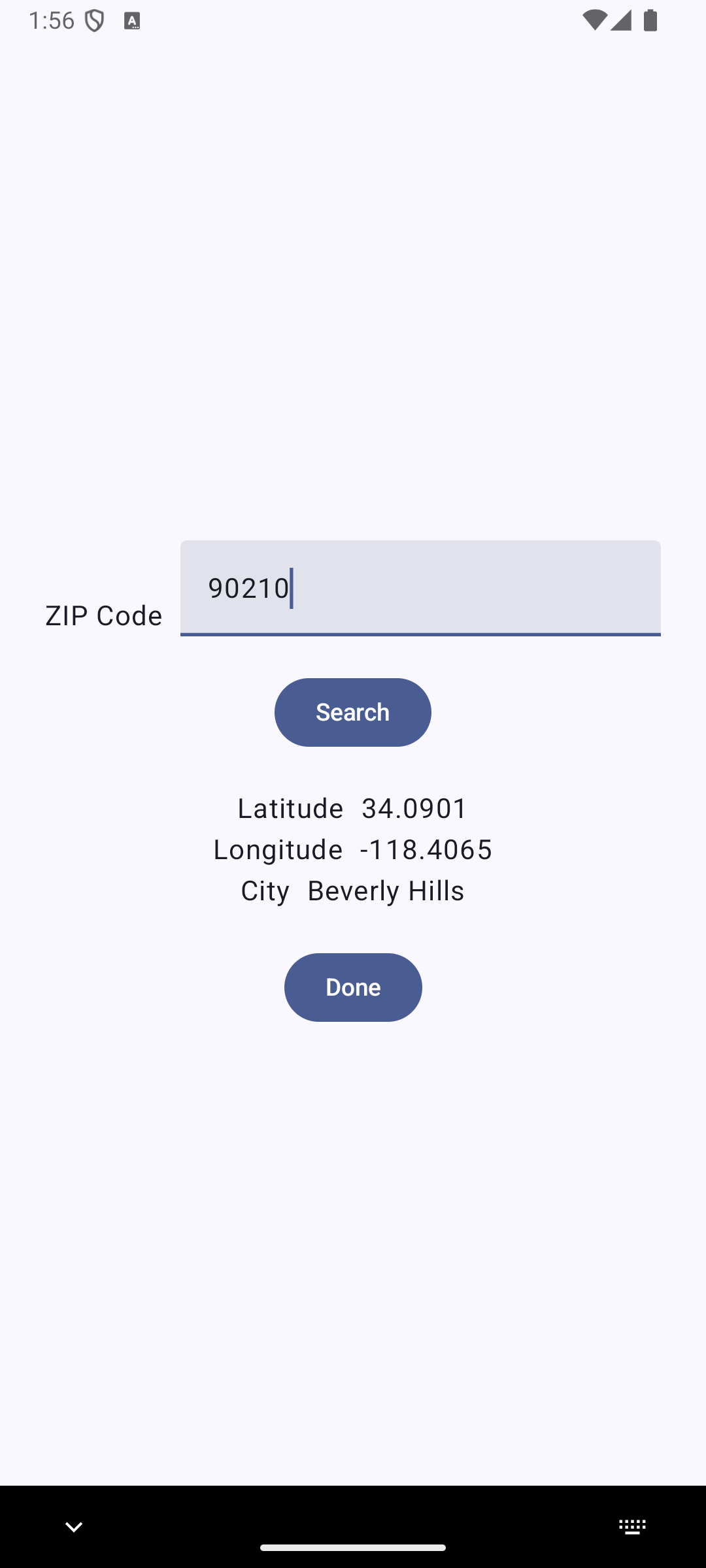
Managing location information
When the app starts up it will send a request to the back end web service to fetch the current forecast for a location of the user's choice. One of the things the app will need to do is to store the user's choice of location on the user's device so we can look up the correct location information to send to the web service at start up time.
The classes that manage the location information are defined in the Location.kt file.
package edu.lawrence.androidweather

import android.content.Context
import android.content.SharedPreferences

data class GeoLocation(
    val zip : String,
    val name : String,
    val lat : Double,
    val lon : Double,
    val country : String)

data class Location(
    val zip : String,
    val latitude : Float,
    val longitude : Float,
    val name : String)

object LocationPreferences {
    private lateinit var sharedPreferences: SharedPreferences

    fun init(context : Context) {
        sharedPreferences = context.getSharedPreferences("edu.lawrence.AndroidWeather",Context.MODE_PRIVATE)
    }

    fun getLocation() : Location {
        val zip : String = sharedPreferences.getString("zip","54911")!!
        val latitude = sharedPreferences.getFloat("latitude", 44.2619F)
        val longitude = sharedPreferences.getFloat("longitude",-88.4154F)
        val name : String = sharedPreferences.getString("name","Appleton")!!
        return Location(zip,latitude,longitude,name)
    }

    fun setLocation(location : Location) {
        with(sharedPreferences.edit()) {
            putString("zip",location.zip)
            putFloat("latitude",location.latitude)
            putFloat("longitude",location.longitude)
            putString("name",location.name)
            apply()
        }
    }
}
The app will use the Location data class to represent location information. The GeoLocation class is a data class that the web service will send to us when we search for a location by ZIP code.
The LocationPreferences class manages reading and writing Location information locally. Instead of setting this class up with the usual class keyword, I have instead chosen to use the object keyword. This keyword is used to declare a class that will be a singleton. When you declare a class with object, Kotlin will create a single global instance of that class that you can access using the class name.
The LocationPreferences class contains methods for reading and writing our Location information using shared preferences. The shared preferences mechanism on Android is a simple mechanism that allows apps to store simple key, value pairs. In the code for the getLocation() and setLocation() methods above you can see how we write and read key, value pairs from shared preferences.
Using Retrofit to communicate with a back end server
Once again, this app will be using Retrofit to communicate with a back end server. This app will communicate with the web service offered by openweathermap.org. More specifically, we will be running a couple of GET requests using URLs offered by that web service.
As usual, the first thing that Retrofit will require us to do is to set up an interface that lists the various interactions we will want to do with the back end. The code for that interface appears in the WeatherApiService.kt file:
package edu.lawrence.androidweather

import retrofit2.http.GET
import retrofit2.http.Query

interface WeatherApiService {
    @GET("data/4.0/onecall/timeline/1day")
    suspend fun getForecast(@Query("lat") latitude: Float,
                            @Query("lon") longitude: Float,
                            @Query("appid") key : String,
                            @Query("units") units : String = "imperial") : Forecast


    @GET("geo/1.0/zip")
    suspend fun getLocation(@Query("zip") zip : String,@Query("appid") key : String) : GeoLocation
}
The web service will be sending us objects encoded in JSON. The only thing we have to be careful with is making sure that that structure of our Kotlin classes exactly matches the structure that will show up in the JSON code coming from the server.
Also in these examples we will be sending requests to the web service that include a number of query parameters. Those parameters will show up as parameters to the methods listed in our interface. The @Query annotation tells Retrofit how to map each method parameter to a query parameter in the URL of the GET request.
After we have set up this interface the next step is to run some code that sets up Retrofit and then launches the requests. That code appears in a separate class that I will cover in the next section.
Working with a ViewModel
Once again, we will be using a view model class in this application. A subtle difference this time around is that the view model will not act as a container for our app's data; instead, it will act as a gateway to the web service, which will be the ultimate source for our app's data.
The WeatherModel.kt files contains the definition of the view model class that we will use to communicate with the web service. Here is the full code for that file:
package edu.lawrence.androidweather

import androidx.compose.runtime.mutableStateOf
import androidx.lifecycle.ViewModel
import androidx.lifecycle.viewModelScope
import kotlinx.coroutines.Dispatchers
import kotlinx.coroutines.launch
import kotlinx.coroutines.withContext
import retrofit2.Retrofit
import retrofit2.converter.gson.GsonConverterFactory

data class TempRange(
    val day : Double,
    val min : Double?,
    val max : Double?,
    val night : Double,
    val eve : Double,
    val morn : Double
)

data class Weather(
    val id: Int,
    val main: String,
    val description: String,
    val icon: String)

data class ForecastDay(
    val dt: Int,
    val sunrise: Int,
    val sunset: Int,
    val moonrise: Int,
    val moonset: Int,
    val moon_phase: Double,
    val temp: TempRange,
    val feels_like: TempRange,
    val pressure: Double,
    val humidity: Int,
    val dew_point: Double,
    val wind_speed: Double,
    val wind_deg: Int,
    val wind_gust: Double,
    val weather: List<Weather>,
    val clouds: Int,
    val pop: Double,
    val rain: Double?,
    val uvi: Double)

data class Forecast(
    val lat : Double,
    val lon : Double,
    val timezone : String,
    val timezone_offset : Int,
    val data : List<ForecastDay>)

class WeatherModel : ViewModel() {
    private lateinit var restInterface : WeatherApiService
    val location = mutableStateOf(LocationPreferences.getLocation())
    val forecast = mutableStateOf<Forecast?>(null)

    init {
        val retrofit : Retrofit = Retrofit.Builder()
            .addConverterFactory(GsonConverterFactory.create())
            .baseUrl("https://api.openweathermap.org/")
            .build()
        restInterface = retrofit.create(WeatherApiService::class.java)
    }

    fun getForecast() {
        val latitude = location.value.latitude
        val longitude = location.value.longitude
        viewModelScope.launch(Dispatchers.IO) {
            try {
                val result = restInterface.getForecast(
                    latitude = latitude,
                    longitude = longitude,
                    key = KeyHolder.apikey
                )
                withContext(Dispatchers.Main) {
                    forecast.value = result
                }
            } catch (e:Exception) {
                e.printStackTrace()
            }
        }
    }

    fun setLocationZip(zip : String) {
        viewModelScope.launch(Dispatchers.IO) {
            try {
                val result = restInterface.getLocation(zip=zip+",US",key = KeyHolder.apikey)
                val newLocation = Location(zip = zip,
                    latitude = result.lat.toFloat(),
                    longitude = result.lon.toFloat(),
                    name = result.name)
                LocationPreferences.setLocation(newLocation)
                withContext(Dispatchers.Main) {
                    location.value = newLocation
                }
            } catch (e:Exception) {
                e.printStackTrace()
            }
        }
    }
}
The file starts with a number of data class definitions that define types of objects the web service may send us. Unfortunately, the data that the web service will send back in response to our forecast request is very complex, and consists of a complicated collection of heirarchically structured objects. At the top layer of the response we are going to get a Forecast object, which contains a list of ForecastDay objects, which in turn have a complex heirarchical structure.
The most important class definition in this file is the WeatherModel class. This is the view model for our app. This time around we will be using the simpler method of setting up a view model class, which is to have it inherit from ViewModel.
We saw above that the first thing that Retrofit will want us to do is to set up the interface that specifies how the server interactions will work. The next step for us is to ask Retrofit to give us an object that implements that interface. That object will get stored in the restInterface member variable. The code to initialize that member variable appears in the init() method.
The getForecast() and setLocationZip() methods run the server interactions. As in the earlier example we will be using coroutines for the server interactions. To launch a coroutine we will need a coroutine scope and a dispatcher. A dispatcher is an object that maintains a pool of threads that can run coroutine code. In this example we will be using two dispatchers, IO and Main. The IO dispatcher is designed to run code that communicates with remote servers, while the Main dispatcher runs code that interacts with the main UI thread of the app. To run a coroutine we use the launch() method of an appropriate scope. Since we are writing code for a ViewModel class we can take advantage of the viewModelScope that is automatically available in ViewModel objects. The launch() method takes as its final parameter a lambda expression containing code for the coroutine.
You can see on example of a coroutine in the getForecast() method above. That coroutine uses the restInterface to send a get request to the server that will return a Forecast object to us. The view model class here also happens to include a state variable that stores a Forecast. We will want to copy the Forecast object we get back from the server into that state variable. We have to exercise a little bit of caution in doing this, since another rule in Android is that state variables can only be updated by code that runs on the UI thread. To get this to happen correctly we have to use the withContext() construct to switch the code that updates the state variable to the Main dispatcher.
Building the user interface
Now that we have set up some essential infrastructure for our app, it is finally time to write the code for the app itself. All of that code appears in the MainActivity.kt file.
package edu.lawrence.androidweather

import android.os.Bundle
import androidx.activity.ComponentActivity
import androidx.activity.compose.setContent
import androidx.activity.enableEdgeToEdge
import androidx.compose.foundation.layout.Arrangement
import androidx.compose.foundation.layout.Column
import androidx.compose.foundation.layout.Row
import androidx.compose.foundation.layout.Spacer
import androidx.compose.foundation.layout.fillMaxSize
import androidx.compose.foundation.layout.height
import androidx.compose.foundation.layout.padding
import androidx.compose.foundation.layout.width
import androidx.compose.foundation.lazy.LazyColumn
import androidx.compose.foundation.text.KeyboardActions
import androidx.compose.foundation.text.KeyboardOptions
import androidx.compose.material.icons.Icons
import androidx.compose.material.icons.filled.Settings
import androidx.compose.material3.Button
import androidx.compose.material3.Card
import androidx.compose.material3.ExperimentalMaterial3Api
import androidx.compose.material3.HorizontalDivider
import androidx.compose.material3.Icon
import androidx.compose.material3.IconButton
import androidx.compose.material3.Scaffold
import androidx.compose.material3.Text
import androidx.compose.material3.TextField
import androidx.compose.material3.TopAppBar
import androidx.compose.runtime.Composable
import androidx.compose.runtime.mutableStateOf
import androidx.compose.runtime.remember
import androidx.compose.ui.Alignment
import androidx.compose.ui.Modifier
import androidx.compose.ui.platform.LocalFocusManager
import androidx.compose.ui.text.input.ImeAction
import androidx.compose.ui.text.input.KeyboardType
import androidx.compose.ui.tooling.preview.Preview
import androidx.compose.ui.unit.dp
import androidx.lifecycle.viewmodel.compose.viewModel
import androidx.navigation.compose.NavHost
import androidx.navigation.compose.composable
import androidx.navigation.compose.rememberNavController
import edu.lawrence.androidweather.ui.theme.AndroidWeatherTheme
import java.time.Instant
import java.time.Instant.ofEpochSecond
import java.time.LocalDate
import java.time.LocalDateTime
import java.time.ZoneId
import java.time.ZoneOffset
import java.time.format.DateTimeFormatter
import java.time.format.FormatStyle
import java.util.Locale

class MainActivity : ComponentActivity() {
    override fun onCreate(savedInstanceState: Bundle?) {
        super.onCreate(savedInstanceState)
        LocationPreferences.init(this)
        enableEdgeToEdge()
        setContent {
            AndroidWeatherTheme {
                Scaffold(modifier = Modifier.fillMaxSize()) { innerPadding ->
                    WeatherApp(
                        modifier = Modifier.padding(innerPadding)
                    )
                }
            }
        }
    }
}

@Composable
fun WeatherApp(modifier : Modifier) {
    val vm : WeatherModel = viewModel()
    vm.getForecast()
    val navController = rememberNavController()
    NavHost(navController,startDestination="forecast") {
        composable(route="forecast") {
            WeatherScreen(vm,toOptions = { navController.navigate("location")}, modifier = modifier)
        }
        composable(route="location") {
            LocationScreen(vm,back = { navController.navigate("forecast")}, modifier = modifier)
        }
    }
}

@OptIn(ExperimentalMaterial3Api::class)
@Composable
fun WeatherScreen(vm : WeatherModel, toOptions: () -> Unit,modifier: Modifier) {
    Scaffold(topBar = {
        TopAppBar(
            title = {
                Text(
                    "Android Weather",
                )
            },
            actions = {
                IconButton(onClick = toOptions) {
                    Icon(
                        imageVector = Icons.Default.Settings,
                        contentDescription = "Settings"
                    )
                }
            },
        )
    },
        modifier = Modifier.fillMaxSize())
    { innerPadding ->
        ForecastView(vm,modifier.padding(innerPadding))
    }
}

@Composable
fun ForecastView(vm : WeatherModel,modifier:Modifier) {
    val forecast = remember { vm.forecast }
    Column(horizontalAlignment = Alignment.CenterHorizontally, modifier = modifier.fillMaxSize()) {
        Text(vm.location.value.name)
        HorizontalDivider()
        if(forecast.value == null) {
            Text("Loading...")
        } else {
            val days = forecast.value!!.daily
            val offset = forecast.value!!.timezone_offset.toLong()
            Column {
                days.forEach { day ->
                    ForecastDayCard(offset,day)
                }
            }
        }
    }
}

@Composable
fun ForecastDayCard(offset: Long, day : ForecastDay) {
    Card() {
        Row() {
            Column() {
                val time : Instant = ofEpochSecond(day.dt + offset)
                val formatter = DateTimeFormatter.ofLocalizedDate( FormatStyle.LONG )
                    .withLocale(Locale.US)
                    .withZone( ZoneOffset.UTC)
                val date : String = formatter.format(time)
                Text(date)
                Text("High ${day.temp.max} Low ${day.temp.min}")
            }
            Icon(imageVector = nameToIcon(day.weather.get(0).icon), contentDescription = "Weather Icon")
        }
    }
}

@Composable
fun LocationScreen(vm : WeatherModel,back : () -> Unit, modifier : Modifier) {
    val focusManager = LocalFocusManager.current
    val zip = remember { mutableStateOf("") }
    val location = remember { vm.location}
    Column(horizontalAlignment = Alignment.CenterHorizontally, verticalArrangement = Arrangement.Center, modifier = modifier.fillMaxSize()) {
        Row(horizontalArrangement = Arrangement.Start, verticalAlignment = Alignment.Bottom) {
            Text("ZIP Code")
            Spacer(modifier=Modifier.width(10.dp))
            TextField(value = zip.value,
                onValueChange = {newValue : String -> zip.value = newValue},
                keyboardOptions = KeyboardOptions(keyboardType = KeyboardType.Number, imeAction = ImeAction.Done),
                keyboardActions = KeyboardActions(
                    onDone = { focusManager.clearFocus() })
            )
        }
        Spacer(modifier=Modifier.height(20.dp))
        Row() {
            Button(onClick = {vm.setLocationZip(zip.value)}) {
                Text("Search")
            }
        }
        Spacer(modifier=Modifier.height(20.dp))
        Row() {
            Text("Latitude")
            Spacer(modifier = Modifier.width(10.dp))
            Text(location.value.latitude.toString())
        }
        Row() {
            Text("Longitude")
            Spacer(modifier = Modifier.width(10.dp))
            Text(location.value.longitude.toString())
        }
        Row() {
            Text("City")
            Spacer(modifier = Modifier.width(10.dp))
            Text(location.value.name)
        }
        Spacer(modifier=Modifier.height(20.dp))
        Button(onClick = { vm.getForecast()
            back() }) {
            Text("Done")
        }
    }
}
The overall structure here follows the app architecture I have been using in previous examples. The WeatherApp component sets up a NavHost for navigation between the two screens. The two screens are defined by the WeatherScreen and LocationScreen components. The WeatherScreen sets up a Scaffold with a navigation bar and a content area that hosts a ForecastView component. The ForecastView displays a list of forecast days, and each forecast day is displayed in a ForecastDayCard component.
Since the view model we are using in this example is a more standard view model we can get away with using a simpler method to initialize it.
val vm : WeatherModel = viewModel()
This code assumes that we have defined exactly one view model class in our app: the method will locate that view model class, make an instance of that class, and then return that to us. Once we have that view model object we can pass it down to any component that needs it.
Additional technical complications
There are a number of things that I had to do in putting this app together to solve some technical problems imposed by the web service I was using. The web service caused some problems because they made some choices in representing key bits of information sent in the forecast. There were two specific problems I had to contend with:
- The ForecastDay class that the web service will send us contains a member variable, dt, that stores a time stamp. That time stamp will come to us in the form of a Unix time stamp that expresses times in the form of the number of seconds that have elapsed since the start of the Unix epoch on midnight, Jan. 1, 1970. We face the problem of converting that time stamp into a date for the forecast day.
- The Weather class contains a member variable, icon, that is a string that is supposed to get mapped to an icon for the weather. The strings that the web service uses for its icons do not map directly to standard weather icons in Android. Instead, I had to write a function that maps the strings returned by the web service into Icons I could display in an Android app. Further, since Android does not contain the icons I wanted as standard system icons, I also had to provide code that would build these icons from scratch.
If you would like to see how I handled these two issues, you can see code in the ForecastDayCard component to handle issue 1 and code in the Icons.kt file to handle issue 2.