The temperature conversion example
Our next example is a simple calculator app that converts Fahrenheit temperatures to Celsius.
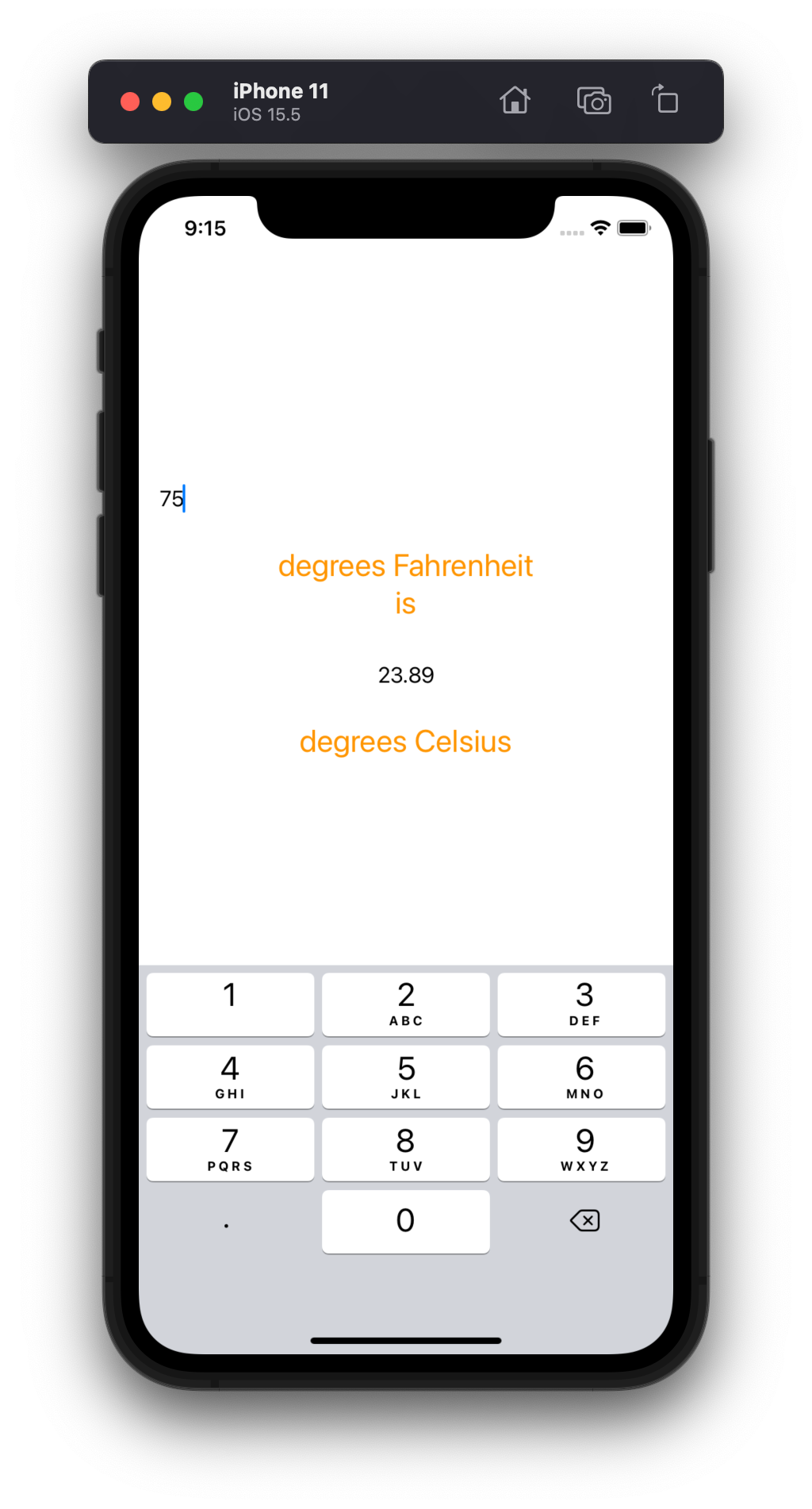
The main new feature we are going to introduce in this example is the use of TextFields, which are components that allow the user to enter text in an app.
Here is the source code for the app's only view:
import SwiftUI

/* Hack to hide the keyboard on a tap gesture from
   https://designcode.io/swiftui-handbook-hide-keyboard */
extension View {
    func hideKeyboard() {
        let resign = #selector(UIResponder.resignFirstResponder)
        UIApplication.shared.sendAction(resign, to: nil, from: nil, for: nil)
    }
}

struct ContentView: View {
    @State var fahrenheitTemp : String = "68"
    @State var celsiusTemp : String = "20"
    var body: some View {
        VStack {
            TextField("",text:$fahrenheitTemp)
                .onChange(of: fahrenheitTemp) { ft in
                    if let t = Double(ft) {
                        let c = (t - 32.0)*5.0/9.0
                        celsiusTemp = String(format:"%.2f",c)
                    }
                }.keyboardType(.decimalPad).padding()
            Text("degrees Fahrenheit").font(.system(size:24)).foregroundColor(.orange)
            Text("is").font(.system(size:24)).foregroundColor(.orange)
            Text(celsiusTemp).padding()
            Text("degrees Celsius").font(.system(size:24)).foregroundColor(.orange)
        }.onTapGesture {
            hideKeyboard()
        }
    }
}

struct ContentView_Previews: PreviewProvider {
    static var previews: some View {
        ContentView()
    }
}
Working with text fields
To create a text field in SwiftUI we use the TextField() initializer. This initializer takes two parameters: some text to use as a label for the text field, and a reference to a state variable that will be connected to the text field. By providing a reference to one of our state variables to the text field we guarantee that anything the user types into the text field will get copied into that state variable for us to use. This saves us from having to write logic in an action method somewhere that reads that text from the text field.
Adding event handlers
Text fields are interactive elements. To respond to user inputs in text fields we will be associating event handlers with the text fields. You attach various event handlers to elements by chaining in an appropriate "on" method. There are two examples of this in the program above.
The first example is adding an event handler to the text field that gets called whenever the user changes the contents of the text field. This is an onChange() handler. The second parameter to that method (which we implemented as a trailing closure here) is a lambda expression that will get called whenever the text in the field changes. The lambda expression takes one parameter, which is the new text for the field. In this example I use the lambda expression to convert the Fahrenheit temperature the user has typed into a Celsius temperature that we store in a second state variable. Since that second state variable displays its value in a text label further down in the view, changes to that second state variable will automatically get displayed in the view.
Note that we typically will not need an onChange() handler for our text fields. The more common arrangement is to set up a text field with a reference to a state variable and then have a button somewhere else in the view whose action method will use that state variable to do some sort of calculation.
A second example of an event handler is a tap gesture recognizer I added to the VStack with the onTapGesture() method. For that I used a trailing closure that calls a method to hide the keyboard via a call to a method whose code I found on the Internet. This code is necessary because once a user starts interacting with a text field and the keyboard associated with that text field pops on the screen it can sometimes be difficult to get the keyboard to go away again. The solution I used here is to add a tap handler to the VStack that encloses the text field. That way, when the user taps anywhere in the VStack outside the text field the tap handler will get invoked and that will hide the keyboard again.