Using Objects to Structure Data
In today's main example we are going to implement an arithmetic quiz application. The main thing driving this application will be a list of quiz questions.
Here is how these quiz questions will get implemented in JavaScript:
var problems = [
  { question: '1+1', options: ['0', '1', '2'], answer: '2' },
  { question: '12-3', options: ['12', '9', '6'], answer: '9' },
  { question: '5*6', options: ['15', '18', '30'], answer: '30' },
  { question: '124/4', options: ['31', '62', '124'], answer: '31' },
  { question: '15*5', options: ['155', '75', '65'], answer: '75' },
  { question: '183+37', options: ['210', '220', '230'], answer: '220' }
];
Let's break down this structure. The value that we have assigned to the problems variable is a JavaScript array. JavaScript arrays start with [, contain a comma separated list of data items, and end with ].
The array elements in this example are all JavaScript objects. JavaScript objects start with {, contain a comma separated list of properties, and end with }.
Each object property consists of a property name, a :, and a value for that property.
Here is a concrete example: the JavaScript object
{ question: '1+1', options: ['0', '1', '2'], answer: '2' }
represents the first problem in our list of problems. It contains three properties: a question, a list of options, and the correct answer.
To access individual elements in a array we will use an indexing system that assigns each element in the array a numerical index. The indexes start with 0 for the first element, and count upward from there. For example, to access the third question on the list we would do
var problem = problems[2];
We can then us a dot notation to access individual properties in the question:
var correctAnswer = problem.answer;
Alteratively, we can combine the array indexing and the property access into single step:
var correctAnswer = problems[2].answer;
Working with Element properties
When we use document.getElementById() to locate an element in a page, JavaScript will return a JavaScript object to us that represents that element. Objects that represent elements typically contain a number of properties that we can read or modify. We have already seen some examples of this. For example, if we wanted to access a span with an id of 'total' and set its text content equal to some string we have constructed, we do
var tSpan = document.getElementById('total');
tSpan.textContent = totalText;
This example modifies the textContent property of the element in question.
It turns out that the elements that you will be able to access with getElementById() have a long list of properties you can manipulate. Through this properties you can modify the element's attributes, change its style, and lots of other things.
A more sophisticated example that we will encounter in today's main example is modifying the style of an item. Specifically, we will first access an element's style property, which gives us access to all of the CSS styles attached to the element. The style property is itself an object, with many properties corresponding to each one of the element's CSS properties. One of those style properties is display, which controls whether or not the element should be visible on the screen.
Example: Arithmetic Quiz
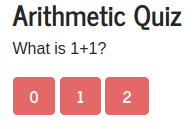
The example page linked above implements a simple arithmetic quiz. The quiz displays a series of questions, and the possible responses for each question are linked to buttons below the question. The user answers the questions by clicking the buttons.
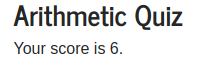
When the user has answered all of the questions the page shows how many questions they got right.
In addition to the problems variable, which stores the problems in the quiz, the program uses a couple of other global variables to track the status of the quiz:
var n = 0; // The current problem number
var correct = 0;
An interesting feature of this example is the fact that all three of the answer buttons are linked to the same function in the JavaScript code.
document.getElementById('one').addEventListener('click', answer);
document.getElementById('two').addEventListener('click', answer);
document.getElementById('three').addEventListener('click', answer);
The answer() function uses the JavaScript construct this.textContent to get the text content of the button the user clicked. The JavaScript keyword this has a special meaning: in an event handler it always refers to the element that has received the event. In this case, this gives us access to the button the user clicked.
By comparing that text against the correct answer for the current question the code can tell whether or not the user got the question right.
function answer() {
  if (this.textContent === problems[n].answer) {
    correct = correct + 1;
  }
  if (n < problems.length - 1) {
    n = n + 1;
    displayProblem();
  } else {
    document.getElementById('questions').style.display = 'none';
    document.getElementById('score').textContent = correct;
    document.getElementById('results').style.display = '';
  }
}
The answer() function also advances the quiz to the next problem, or shows the final results after the user has answered the last question.
The program uses the CSS display property to hide and show divs on the screen. When the user has answered all of the questions, the answer() function will hide the div that shows the questions and shows the div that presents the final results.