Automating Array Access with Loops
Here is another example of an array containing data values. The array in this example stores sales data for a restaurant over the six days in a week that the restaurant is open.
sales = [2302.50,2065.70,2290.85,2440.75,2804.25,3257.50];
Suppose now that we wanted to compute the total sales for the week. Here is one way to do this.
total = sales[0]+sales[1]+sales[2]+sales[3]+sales[4]+sales[5];
This works perfectly well, but does not scale well to larger problems. For example, if our list of sales data covered, say, 300 days worth of sales data writing out the sum over those 300 days would be very tedious.
Since arrays can potentially store large amounts of data, the key to working with lots of data is automation. JavaScript contains a number of language features that are useful for automating computational tasks. The first such mechanism we will encounter is the JavaScript loop.
To take advantage of JavaScript loops to automate the task of adding up the elements in an array I have to start by rewriting the example above slightly. Initially, this rewriting will make the example more verbose:
total = 0;
index = 0;
total = total + sales[index];
index = index + 1;
total = total + sales[index];
index = index + 1;
total = total + sales[index];
index = index + 1;
total = total + sales[index];
index = index + 1;
total = total + sales[index];
index = index + 1;
total = total + sales[index];
Not only is this form more verbose, it is also intentionally highly repetitive.
The next example makes use of a JavaScript for-of loop to automate the process of doing the repetitive steps in the last example:
total = 0;
for(sale of sales) {
  total = total + sale;
}
A for-of loop has the following structure
for(<item> of <list>) {
  <body statements>
}
The for-of loop is a repetition structure. On each repetition of the loop the next available item in the list gets assigned to the <item> variable. Then, we will make one pass through the <body statements>. This process will repeat until we have processed all of the items in the list.
The advantage to using the loop structure is that it scales naturally to lists of any size. If our array of sales is 300 items long, the code above will still correctly compute the total of the items in the list.
Here is another example. Suppose we wanted to determine the highest value in the sales array. The following code does that.
highest = 0; // This is the highest we have seen
for(sale of sales) {
  if(sale > highest) // If the current item beats highest
    highest = sale; // record it as the new highest
}
The JavaScript DOM
We have already seen that we can use the document.getElementById() function to locate element on the page by their ids. We have also seen that once we are able to access page elements we can read their values, set their contents, or perform other actions.
These examples are just the start of what we will eventually be able to do with page elements.
The technology that makes all of this possible is known as the JavaScript Document Object Model, or DOM. The DOM system creates a collection of JavaScript objects that exactly mirror the structure of the elements in an HTML page. Further, we can use this system to modify existing elements, create new elements, and remove existing elements.
Using JaveScript to make new elements
A common use of DOM code is to make new elements. In cases where you want to append a new element to an existing element, you will need to start by making that new element. Here is an example that demonstrates how to do that. Suppose we have a select element in our document with an id of colors, and that we want to append a new option to the select. The code sample below shows how to do that:
var list, newEntry;

// Locate the element with id of colors
list = document.getElementById('colors');

// Make a new option element
newEntry = document.createElement('option');
newEntry.textContent = 'Yellow';
newEntry.value = 'yellow';

// Append the new option to the select
list.appendChild(newEntry);
This example does not explain why we would want to use JavaScript code to create a new option in a select. The examples below will show why we might want to do that..
Removing elements
We can also remove elements from the page. The simplest method to do this is to locate the element in the usual way and then tell To do this, we locate the element we want to remove via a selector, and then tell the element to remove itself. For example, if we wanted to remove the paragraph with the id of temp from our document, we would do
// Locate the paragraph with an id of temp
var p = document.getElementById('temp');

// Tell the paragraph to remove itself
p.remove();
Using querySelector()
In more advanced applications of JavaScript DOM code we may need to target specific parts of an element. One example of this that comes up frequently in practice is targeting a specific part of an element Suppose we had a table in our document with an id of 'results'. Suppose further that we wanted to remove all of the rows in the body of this table in preparation for replacing them with new rows.
The first step in doing something like this is to get a reference to the tbody element inside the table. Once we have done that, we can issue commands to the tbody to remove its existing rows, and maybe insert new ones in their place.
Here's how we would start this process:
// Locate the body of the table with an id of 'results'
var body = document.querySelector('#results tbody');

// Tell the body to remove all of its rows
body.replaceChildre();
The querySelector() function gives us a new, more flexible way to access particular elements. In this example the #results portion of the selector we are using says to locate the element with an id of 'results'. The tbody that follows that says to locate the tbody element inside that first element.
Here is a link to a page that shows some more examples of what you can do with querySelector().
Cafe menu example
The example web page that goes with today's lecture uses loops and DOM manipulation to construct a dynamic menu for an imaginary cafe.
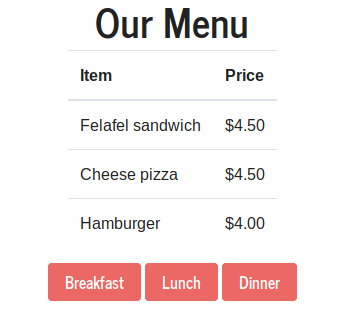
The buttons at the bottom allow the user to select a meal. When the user clicks one of these buttons the table above the buttons will display the menu items that the cafe serves at that meal.
The data for the table entries is stored in a form of a JavaScript array containing a list of menu items. Each item is an object that describes that menu item, including what meal the item is served at.
var items = [{item:'Felafel sandwich',cost:'$4.50',meal:'L'},
             {item:'Cheese pizza',cost:'$4.50',meal:'L'},
             {item:'Breakfast Burrito',cost:'$3.50',meal:'B'},
             {item:'Hamburger',cost:'$4.00',meal:'L'},
             {item:'Mac and Cheese',cost:'$4.50',meal:'D'},
             {item:'Muffin',cost:'$2.50',meal:'B'},
             {item:'Salisbury Steak',cost:'$6.50',meal:'D'},
             {item:'Pancakes',cost:'$3.50',meal:'B'},
             {item:'Spaghetti',cost:'$4.50',meal:'D'}];
To obtain only the items served at a given meal, the program uses the following function:
// An example of a filter function designed to filter a list of objects
function filterList(list,meal) {
  var result, entry;

  result = []; // Make a new, empty list
  for(entry of list) {
    // Search the original list for items that have the desired meal property
    if(entry.meal == meal)
      result.push(entry); // Add items that match to the new list
  }

  return result;
}
The function takes the original array of menu items along with a meal code as its inputs and constructs a filtered array that contains only those items that are served at the given meal. The function constructs the new array by starting with an empty array. Each time the loop locates a new item of interest, we use the array push() method to push that item onto the new array.
Another application of loops in this example appears in the displayItems() function. This function takes a list of items to display and places them in the body of the table above the buttons. The code in this function uses DOM manipulation techniques to remove existing rows from the table and add new rows to it.
function displayItems(items) {
  var menu = document.getElementById('menu');
  var entry, newRow;

  // Remove any existing entries from the table
  menu.replaceChildre();

  // Add new rows for the items in the list
  for (entry of items) {
    newRow = document.createElement('tr');

    var nameCell = document.createElement('td');
    nameCell.textContent = entry.item;

    var costCell = document.createElement('td');
    costCell.textContent = entry.cost;

    newRow.appendChild(nameCell);
    newRow.appendChild(costCell);

    menu.appendChild(newRow);
  }
}
Note the use of the replaceChildren() function to remove all of the existing rows of the table before adding in new ones.
Exercise calculator rewritten
As a second example I have rewritten the exercise calculator example from a previous lecture. The main change is in caloriesPerHour(), which takes advantage of our ability to use loops to fully separate the exercise calorie rate data from the logic of the function.
// Exercise data in the form of an array of objects
var data = [{activity:'walking',intensity:'low',calories:176},{activity:'walking',intensity:'medium',calories:232},
                {activity:'walking',intensity:'high',calories:352},{activity:'cycling',intensity:'low',calories:422},
          {activity:'cycling',intensity:'medium',calories:563},{activity:'cycling',intensity:'high',calories:704},
          {activity:'running',intensity:'low',calories:704},{activity:'running',intensity:'medium',calories:880},
          {activity:'running',intensity:'high',calories:1126},{activity:'swimming',intensity:'low',calories:422},
          {activity:'swimming',intensity:'medium',calories:563},{activity:'swimming',intensity:'high',calories:704}];

// A helper function to compute the calories per hour for
// an activity at a certain intensity
function caloriesPerHour(activity,intensity) {
  var entry;

  for(entry of data) {
    if(entry.activity==activity && entry.intensity==intensity)
      return entry.calories;
  }

  return 0;
}