Building a web mail application
For our next example I am going to construct the front end for a web mail application. In the notes below I am going to start by giving you a guide to what the back end server can do for you. I will then walk you through the process of building the web application that acts as a front end to this system.
The server
I have set up a back end server for the mail system at
https://cmsc106.net/mail
The server includes a documentation page at
https://cmsc106.net/mail/swagger-ui/index.html
that you can view in a browser. That documentation page lists every one of the interactions that the server supports. For GET requests the documentation page shows you the structure of the data that the server will return. For POST requests the documentation will show you the structure of the objects that you are expected to send in the body of the POST.
To supplement the information on the documentation page, here is a quick guide to some the things we will want to do with the server.
1. To create a new user on the system we will need to POST an object that takes the form
{
  "name": <user name>,
  "password": <password>
}
to the URL https://cmsc106.net/mail/user. If the request is successful the server will respond by sending us an object with the structure
{
  "userId": <user id>
}
containing a user id for that user. If the user name is already taken the server will respond with a 409 Conflict error code.
2. To log in an existing user we send a GET request to the URL
https://cmsc106.net/mail/user?user=<user name>&password=<password>
If the login is successful the server will respond by sending us an object with the structure
{
  "userId": <user id>
}
containing a user id for that user. If the login fails the server will respond with a 401 Unauthorized error code.
3. The email system allows you to send emails to multiple recipients. To send an email, we start by sending a POST request to https://cmsc106.net/mail/message that has a body that takes the form
{
  "subject": <subject>,
  "body": <body>,
  "sender": <user id>
}
The server will respond by sending us an object with the structure
{
  "messageId": <message id>
}
containing a message id for that newly created message For each recipient of the message we will then need to send a POST request to https://cmsc106.net/mail/recipient that has a body that takes the form
{
  "message": <message id>,
  "recipient": <user name>
}
4. To fetch a list of messages that have been sent to a particular user, we send a GET request to
https://cmsc106.net/mail/handles?receiver=<user id>
The server will respond by sending us back an array of objects that take the form
{
  "messageId": <message id>,
  "receiver": <user id>,
  "sender": <user name>,
  "subject": <subject>
}
5. To fetch a message we send a GET request to the URL
https://cmsc106.net/mail/message/<message id>
The server will send back an object that takes the form
{
  "subject": <subject>,
  "body": <body>,
  "sent": <time stamp>,
  "sender": <user name>,
  "idmessage": <message id>
}
6. To delete a message we actually remove the receiver of the message as a recipient for that message. To do this, we send a DELETE request to the URL
https://cmsc106.net/mail/recipient/<user id>/message/<message id>
A new URL pattern
In the interactions listed above we some examples of URLs that make use of path parameters. This is another method of embedding parameters in a URL. The best example of this is the URL for deleting a message. To construct that URL we will have to insert the user id of the currently logged in user in place of the path parameter <user id> and the id of the message we want to delete in place of the path parameter <message id>. You will see how this works in practice in the code below.
The structure of the solution
Once again, we are going to construct our solution as a single page application composed of a single HTML page and single JavaScript page. The HTML page will have four divs that we will show and hide as the user moves through the application.
The first div prompts the user to log in or create a new account.
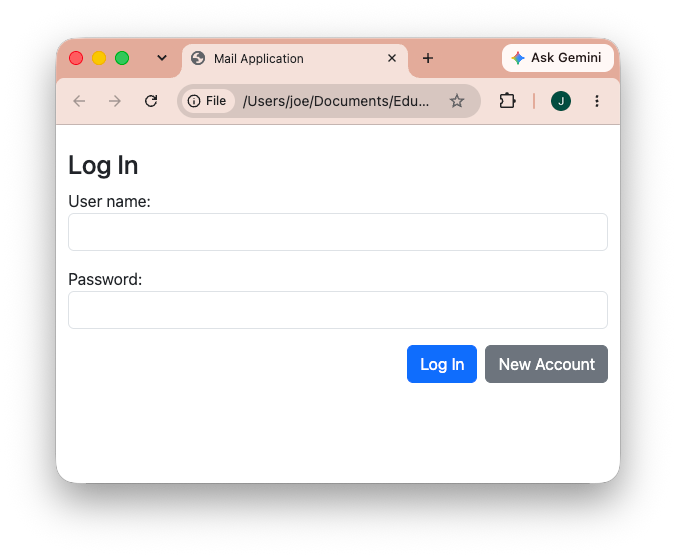
After logging in successfully the first div closes and the app shows the second div. This div displays a list of messages for the user.
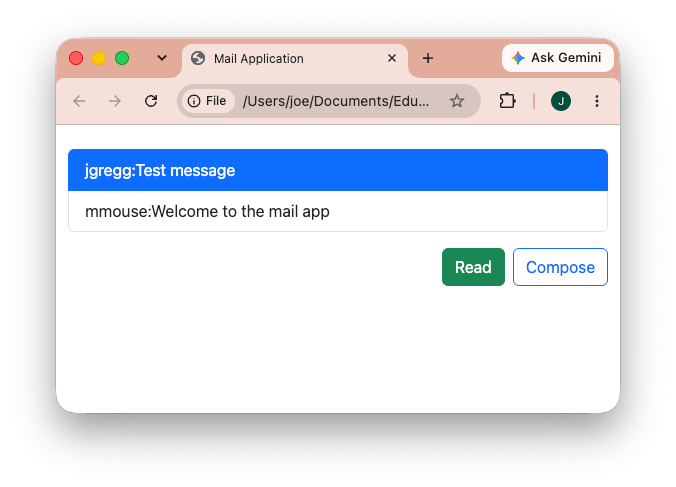
The user can click to select a message and then press the Read button. This takes the user to a third div where they can view the message.
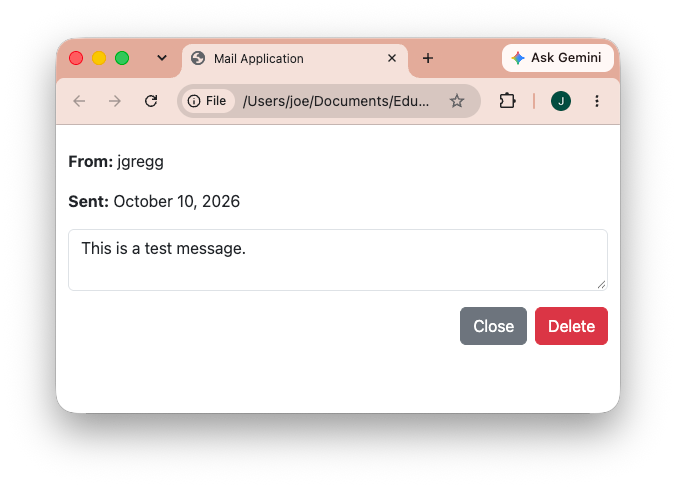
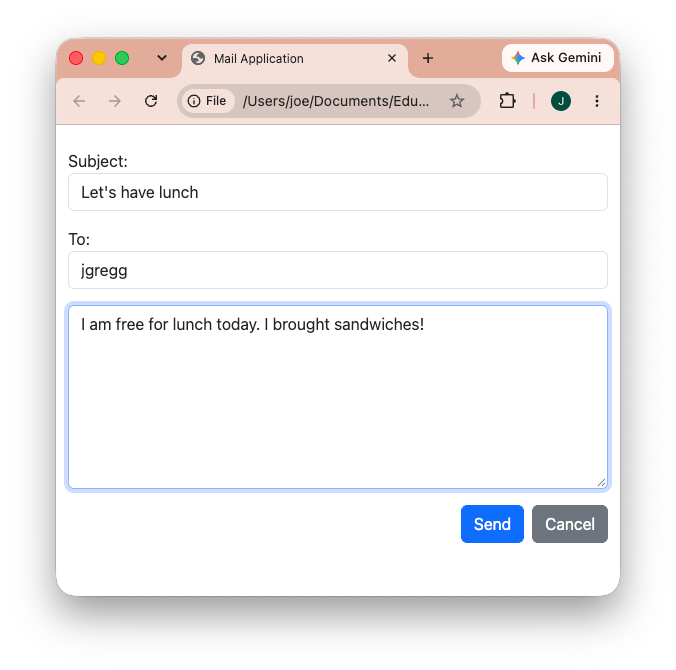
Clicking the Compose button in the second div takes the user to the fourth div where they can compose a new message. Users can send a message to multiple recipients by entering a comma separated list of user names in the To field.
Implementation details
You can click the JavaScript Code button at the top of these notes to view the full code for this example. In the notes below I am going to highlight selected parts of the code for more detailed explanations.
The first thing to pay attention to in the code is the list of global variables at the top of the code:
var user = 0;
var selectedMessage = 0;
var selectedItem = null;
var coreUrl = "https://cmsc106.net/mail/";
var activeMessage = 0;
var activeRecipients = [];
The most important of these is the user variable. This stores the user id of the currently logged in user, which will be needed in a number of our server interactions.
The next two variables, selectedMessage and selectedItem are used in combination with the list of messages we display in the second div. Since the user can click to select a message in this list we need these variables to track which item the user clicked on and the message id associated with that message.
The last two variables will be used in combination with the message sending code. To send a message to server we start by posting the details of the message to the server. The server will respond to that by giving us back a message id for the newly created message: this goes into the activeMessage variable. The recipients of the message are sent separately: for each recipient we have to POST that recipient to the server along with the message id. The activeRecipients array tracks how many recipients we still have left to POST to the server.
Getting and displaying a list of handles
Once the user has logged in we need to fetch the list of messages the system has for that user. To do that, we will send a GET request to the server with the URL
https://cmsc106.net/mail/handles?receiver=<user id>
The server will respond by sending us a list of handle objects, which look like
{
  "messageId": <message id>,
  "receiver": <user id>,
  "sender": <user name>,
  "subject": <subject>
}
We need to then convert those objects to a list on the screen. Here is the code that does this:
function receiveHandles(data) {
    var handlesList = document.getElementById('handles');
    handlesList.replaceChildren();
    var handle;
    for(handle of data) {
        var newEntry = document.createElement('li');
        newEntry.setAttribute('class','list-group-item');
        newEntry.textContent = handle.sender + ":" + handle.subject;
        newEntry.setAttribute('data-message',handle.messageId);
        newEntry.addEventListener('click', setSelection);
        handlesList.appendChild(newEntry);
    }
}
function loadHandles() {
    var url = coreUrl + "handles?receiver="+user;
    fetch(url).then(function(response){return response.json();}).then(receiveHandles);
}
Implementing click to select
Once we have built the list of message handles, we will want to make them selectable by the user. To do this, the code above that builds the list items adds a click handler to each of these items. Here is the code for that handler:
function setSelection() {
    if(selectedItem)
        selectedItem.classList.remove('active');
    selectedItem = this;
    this.classList.add('active');
    selectedMessage = this.getAttribute('data-message');
}
We implement highlighting in the list by using a BootStrap active class. This class gets added to the item the user clicked on and removed from the previous item they had selected. When we built the list we were careful to hide a data-message attribute in each list item that stores the id of the associated message. When the user clicks on one of the list items we will read the message id from the item and store that in a global selectedMessage variable.
Implementing message deletion
In the div that shows the user a message we have provided a Delete button that they can use to delete the message. Here is the click handler for that button:
function closeRead() {
    document.getElementById('read_div').style.display='none';
    loadHandles();
    document.getElementById('main_div').style.display='';
}

function deleteMessage() {
    var url = coreUrl + "recipient/"+user+"/message/" + selectedMessage;
    fetch(url, {method:'DELETE'}).then(closeRead);
}
This code shows an example of using fetch() to send a DELETE request to the server.
Sending a message
The div that allows a user to compose a new message has a Send button. Here is the click handler for that button, sendMessage(), along with some of the helper functions it will need:
function sendOneRecipient(data) {
    if(activeRecipients.length > 0) {
        var recipient = activeRecipients[0];
        activeRecipients.splice(0,1);
        var url = coreUrl + "recipient";
        var recipientObj = {message:activeMessage,
                       recipient:recipient};
        var toSend = JSON.stringify(recipientObj);
        fetch(url, {
          method: 'POST',
          body: toSend,
          headers: {'Content-Type':'application/json'}
        }).then(sendOneRecipient);
    } else
        closeCompose();
}

function sendRecipients(data) {
    activeMessage = data.messageId;
    activeRecipients = document.getElementById('recipients_field').value.split(',');
    sendOneRecipient();
}

function sendMessage() {
    var url = coreUrl + "message";
    var message = {subject:document.getElementById('subject_field').value,
                   body:document.getElementById('content_area').value,
                   sender:user};
    var toSend = JSON.stringify(message);
    fetch(url, {
      method: 'POST',
      body: toSend,
      headers: {'Content-Type':'application/json'}
    }).then(function(response){return response.json();}).then(sendRecipients);
}
Sending a message is a multi-step process. First, we construct an object with the structure
{
  "subject": <subject>,
  "body": <body>,
  "sender": <user id>
}
to the URL https://cmsc106.net/mail/message. The server will send us back an object containing the message id for the newly created message. We store that in the activeMessage variable.
The recipients for the message have to be sent separately, one at a time. We start by reading the text the user typed into the field with id recipients_field and then applying the split(',') function to that. That function will split the user's text at the commas into an array of strings, one for each recipient of the message. We store that list in the global activeRecipients and kick off the process of POSTing those recipients with a call to sendOneRecipient().
The sendOneRecipient() function removes one recipient name from the front of the activeRecipients list via the code
var recipient = activeRecipients[0];
activeRecipients.splice(0,1);
and uses that recipient to make an object with the structure
{
  "message": <message id>,
  "recipient": <user name>
}
We post that object to the URL https://cmsc106.net/mail/recipient. The callback for that POST is sendOneRecipient. This effectively implements a loop of POSTs until we have emptied out the activeRecipients array.